

- Endpoints belong to the business unit selected in the header. Switch business unit to manage another business unit’s endpoints.
- Each endpoint receives events from both test and live mode.
- Endpoints receive payment session and payment events. Choosing individual event types isn’t available yet.
- Anyone with access to webhooks can view endpoints and copy their URL and signing secret. Adding, disabling, re-enabling, and rotating need permission to manage webhooks. If the section or its buttons are missing, ask an admin on your account to check your role.
Step 1: Open the Webhooks section
Select Settings in the sidebar and scroll to Webhooks. Until the business unit has an endpoint, the section shows No webhook configured.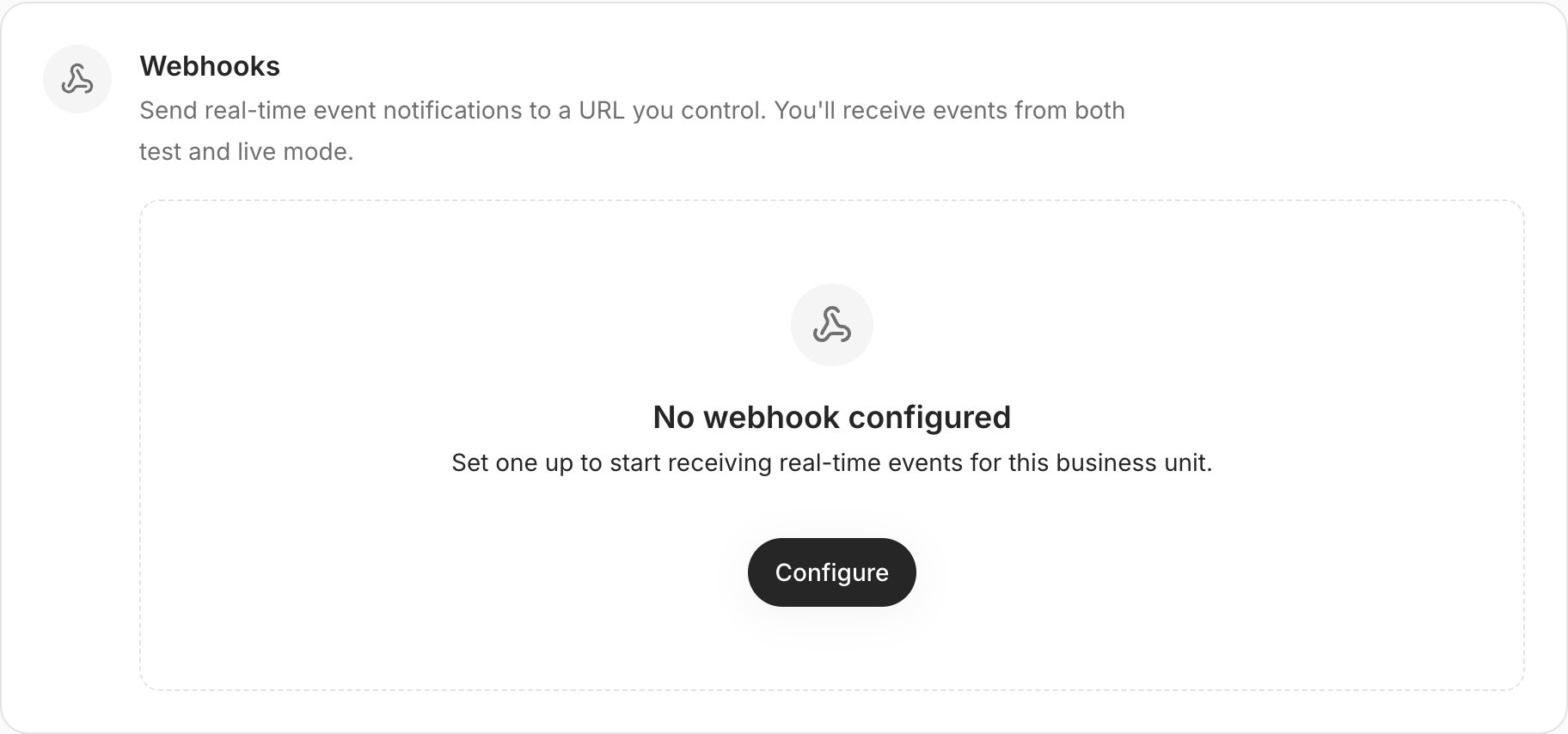
Step 2: Add an endpoint
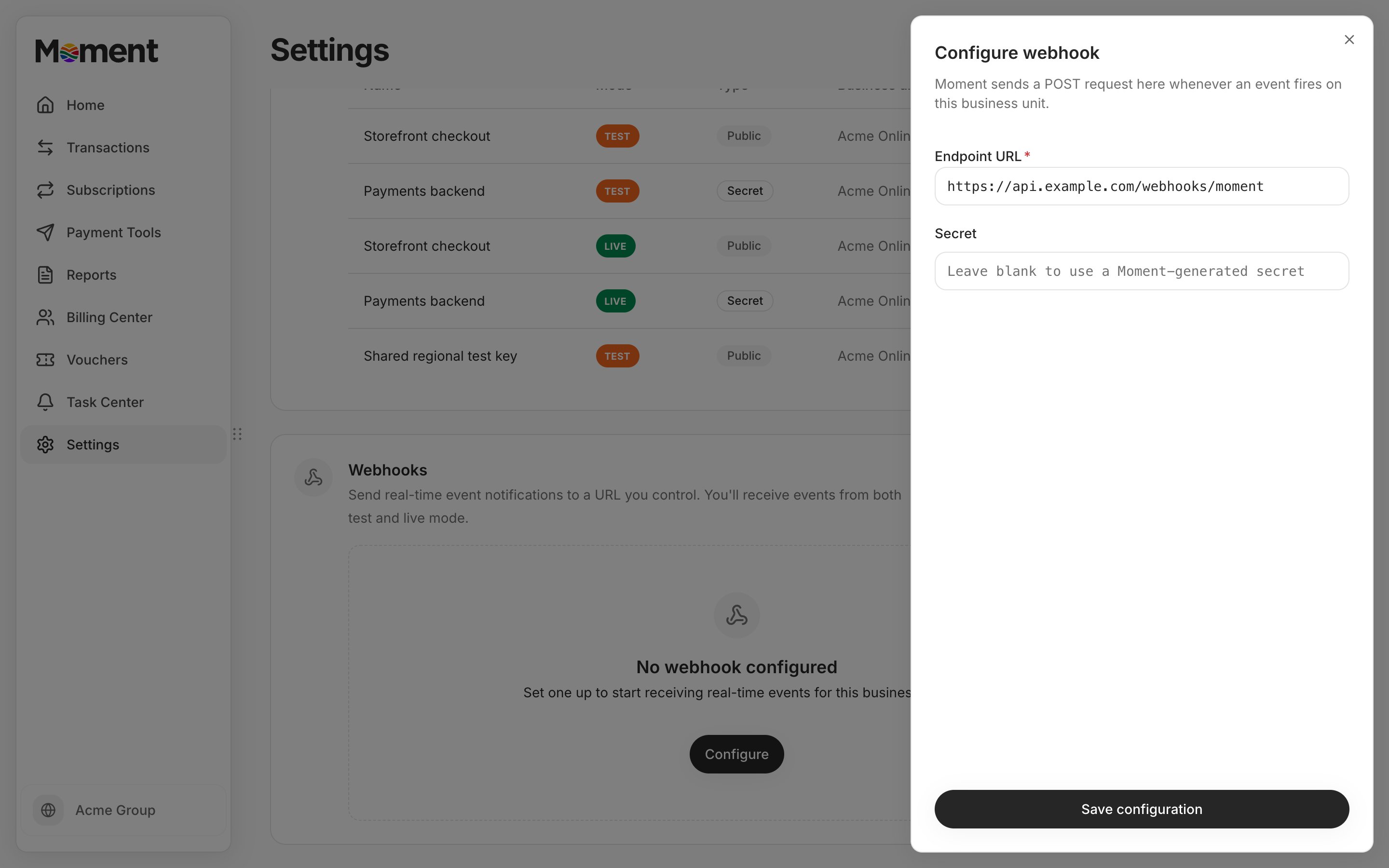
Select Configure to open the Configure webhook panel. Once the business unit has an endpoint, add more with Create in the section header.- Endpoint URL (required): The URL Moment sends a
POSTrequest to for each event. It must usehttpsand a public domain name, for examplehttps://api.example.com/webhooks/moment. IP addresses andlocalhostaren’t accepted. Ports, paths, and query strings are. - Secret (optional): Leave it blank and Moment generates a signing secret for the endpoint. To use your own, enter
whsec_followed by 24 to 64 random bytes, base64 encoded.
Step 3: Copy the signing secret
The endpoint’s details show its Endpoint URL and Secret. The secret is masked on screen, showing only its last four characters. Select the copy icon next to it to copy the full value. Store the secret on your server and use it to check that each event came from Moment. See Verification.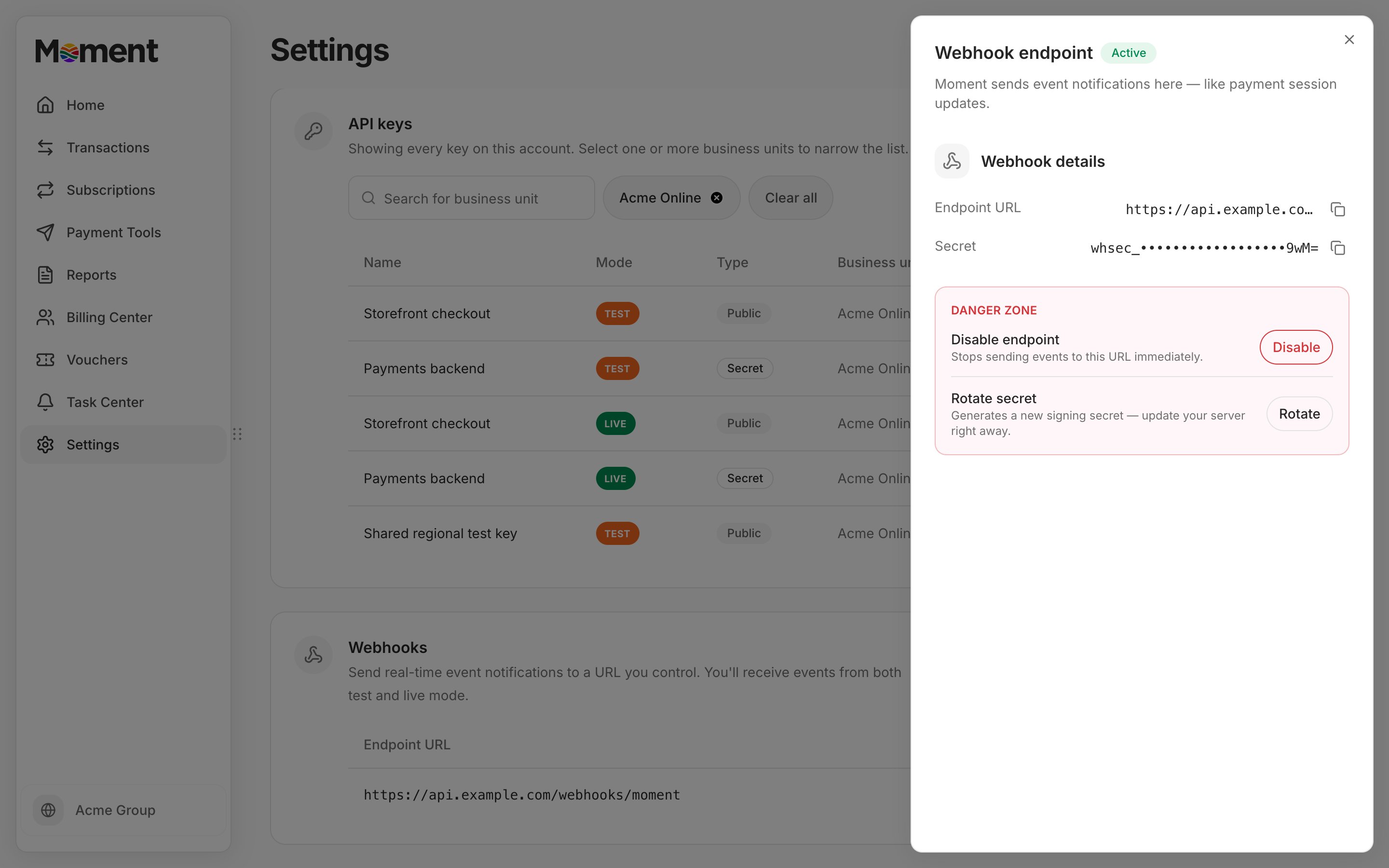
Manage an endpoint
The Webhooks section lists each endpoint’s Endpoint URL and Status, which is either Active or Disabled. Select an endpoint to open its details. The actions to disable an endpoint and rotate its secret are under Danger zone in the details panel.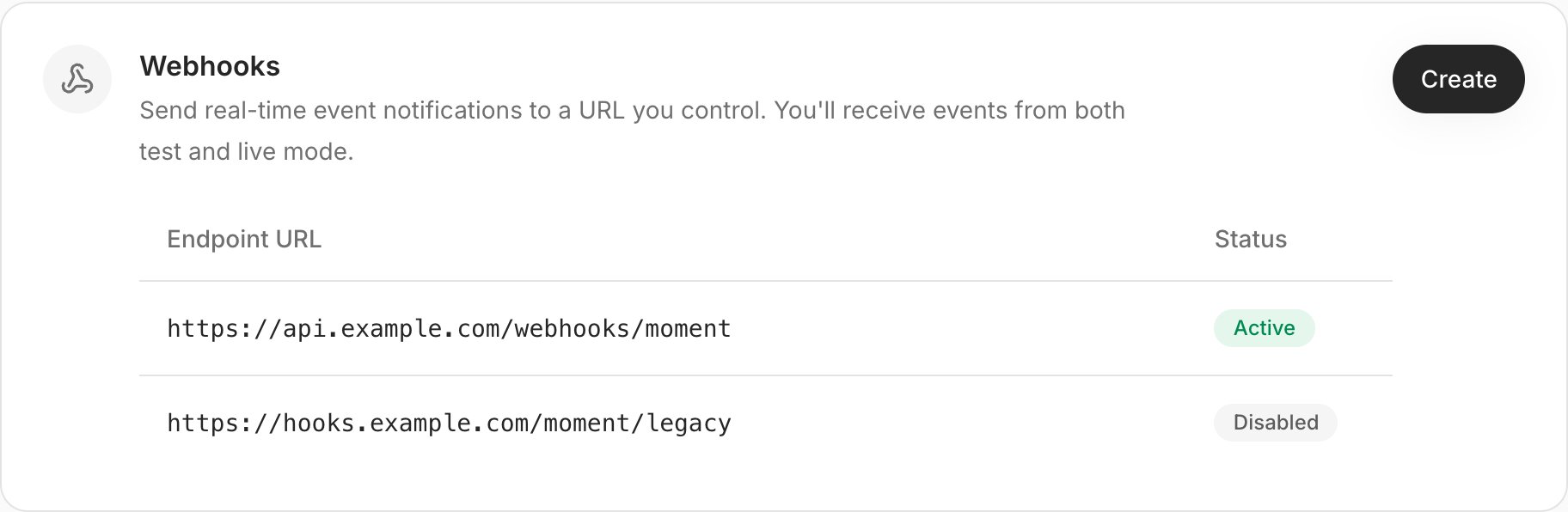
Disable an endpoint
Select Disable, then confirm with Disable endpoint. Moment stops sending events to the URL straight away. Events that occur while the endpoint is disabled aren’t delivered later, including after it’s re-enabled.Re-enable an endpoint
Open a disabled endpoint and select Re-enable endpoint. Moment resumes sending new events to the URL.Rotate the signing secret
Select Rotate, then confirm with Rotate secret. Moment generates a new signing secret and the old one stops working immediately. Events fail verification on your server until it uses the new secret, so have that change ready to deploy before you rotate.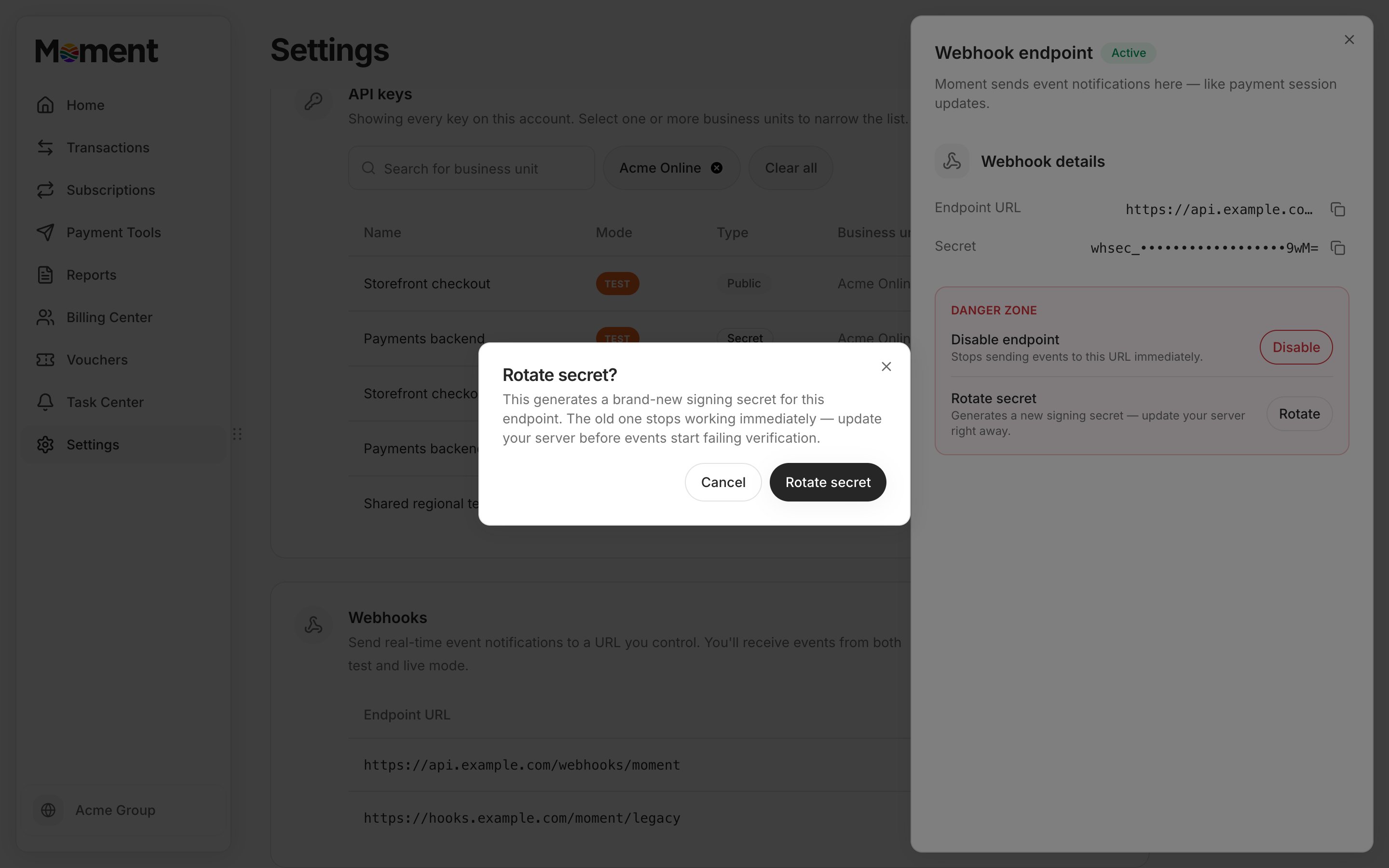
Good to know
- An endpoint’s URL can’t be edited. To change it, add an endpoint with the new URL, update your server, then disable the old endpoint.
- Endpoints can’t be deleted from the Client Portal. Disable any endpoint you no longer use.
- For delivery timing and retries, see Processing events.
- If your endpoint sits behind a firewall, allow Moment’s source IP addresses. See Additional security precautions.