

- The section is visible to users whose role includes access to API keys. If it’s missing from Settings, ask an admin on your account to check your role.
- Only active keys are listed. Revoked and expired keys don’t appear.
Step 1: Open your API keys
Select Settings in the sidebar and scroll to API keys. On wide screens, you can also jump there from the On this page list on the right. Settings has no Live/Test toggle. Test and live keys are listed together, whichever mode you’re in.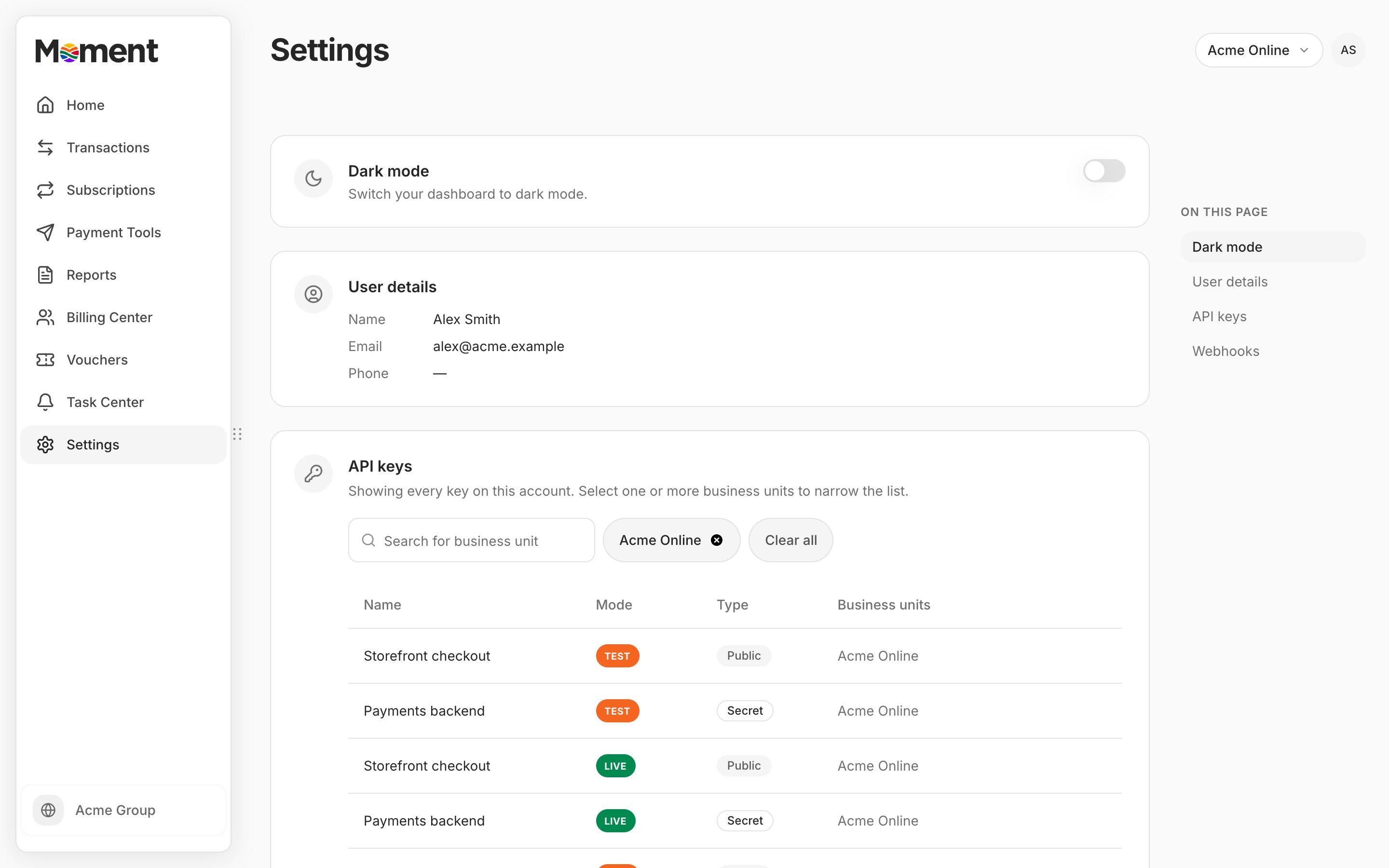
Step 2: Filter by business unit
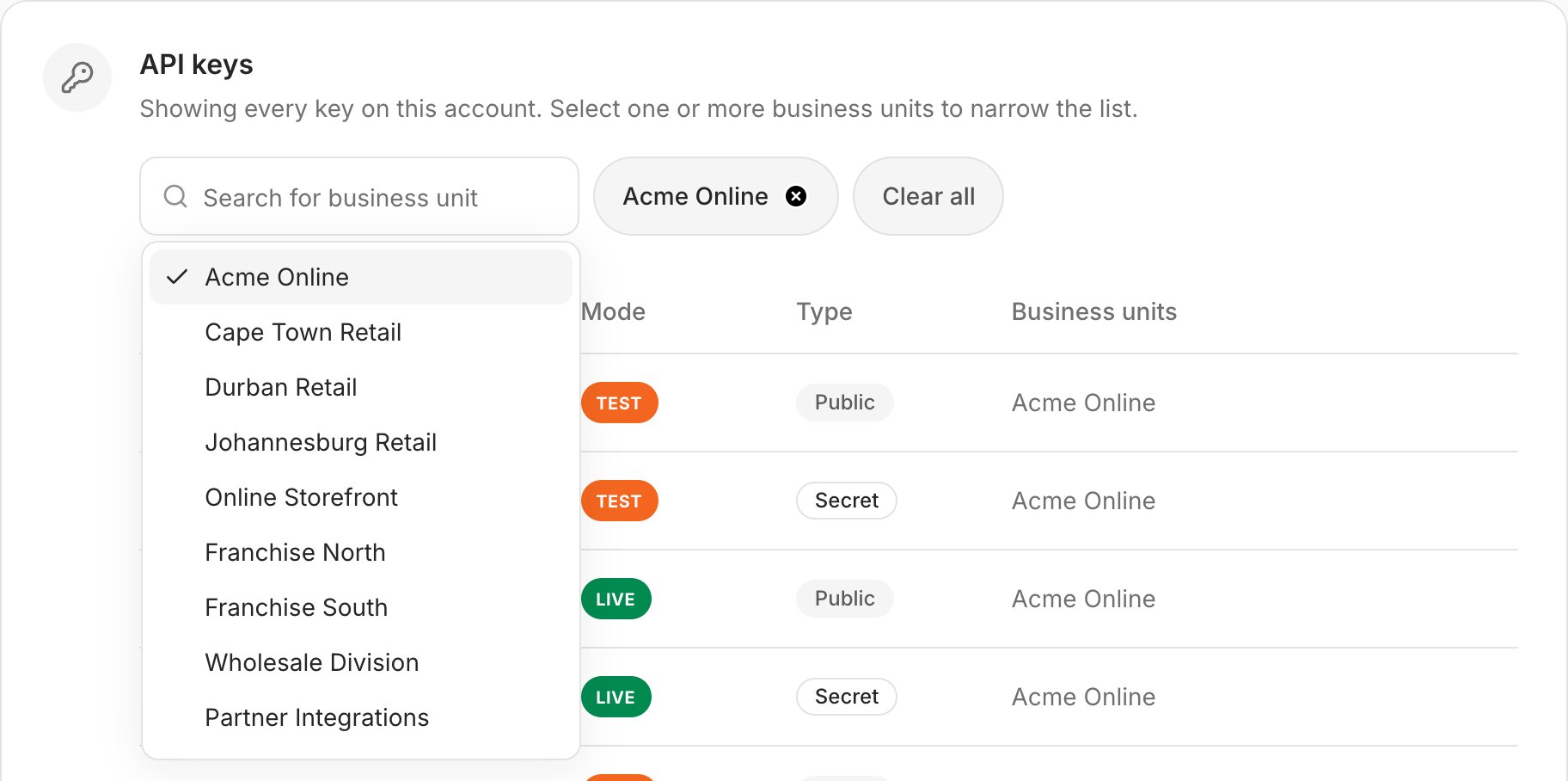
The list starts filtered to the business unit selected in the header. To see keys for other business units:- Type in Search for business unit and select one or more business units. Each selection appears as a chip under the field.
- Remove a chip to drop that business unit from the filter, or select Clear all to remove every chip.
Step 3: Open a key and copy it
Each row in the table shows one key:
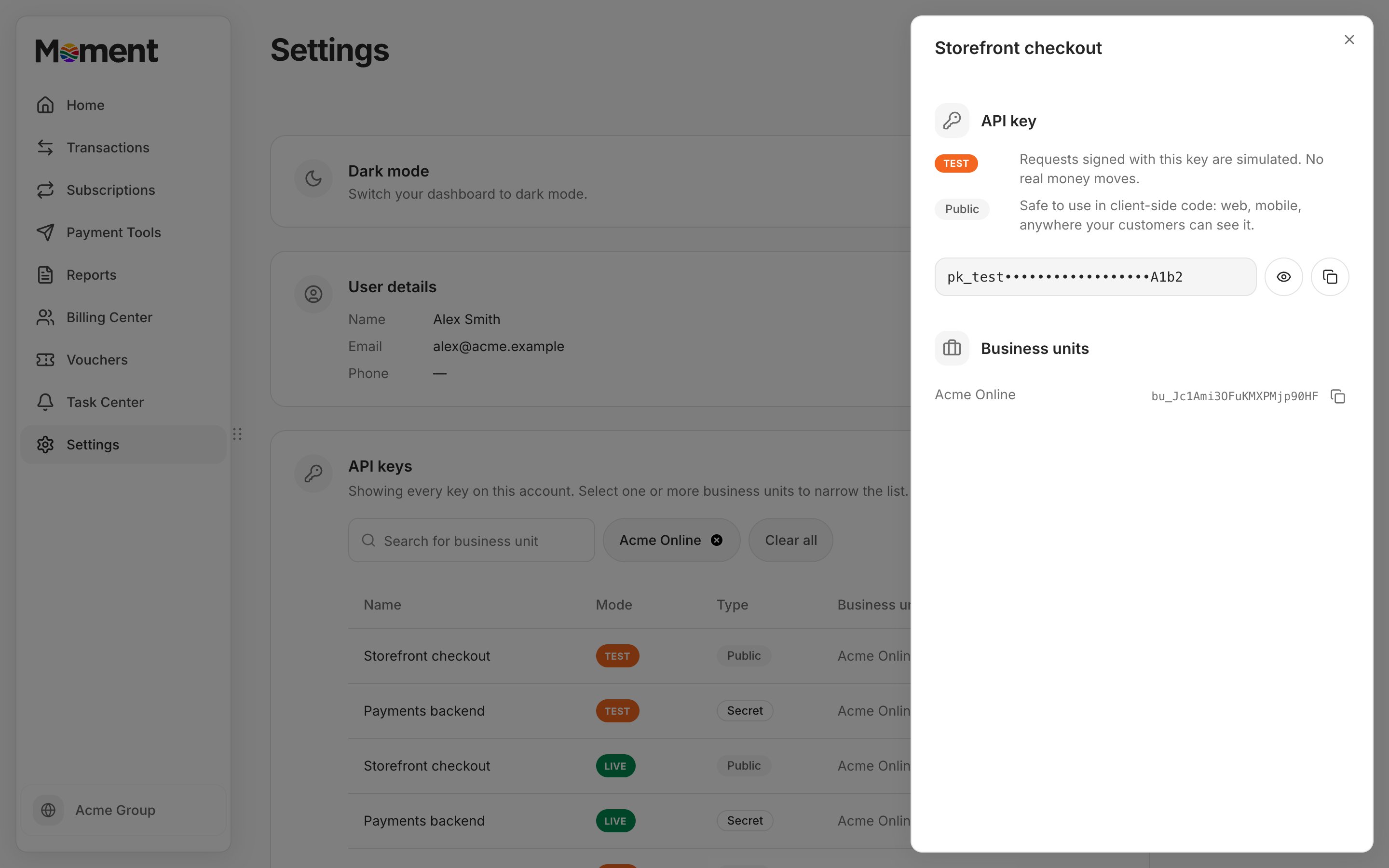
Select a row to open the key’s details. The panel shows:
- The key’s mode. Test keys simulate requests and move no real money. Live keys move real money.
- The key’s type. Public keys can be used in client-side code. Secret keys are for server-side code only.
- The key itself is shown as masked. Select the eye icon to show or hide it, and the copy icon to copy the full key.
- The Business units the key is linked to, each with an ID you can copy. Requests made with a key linked to more than one business unit must include this ID in the
Moment-Business-Unitheader. See Business units.
Live keys and business verification
A live key can only be opened once the legal entity behind its business unit is verified. Until then, the key’s row shows a lock icon next to its mode. Hover over the mode badge to see the reason:
Test keys are never locked, so you can build and test your integration while verification is in progress.
Good to know
- Switching organisation or business unit in the header reloads the list, resets the business unit filter to the new selection, and closes any open key.
- Keys are masked again each time you open the details panel.
- Access to API keys is set per organisation. If you belong to more than one organisation, you may see the section in one and not another.
- Key names are set when Moment issues a key and can’t be changed in the Client Portal.