

How to create a subscription
Go to Subscriptions in the Client Portal to see all existing subscriptions in one view: status, customer, amount, and next charge date at a glance. Click Create Subscription to open the setup form.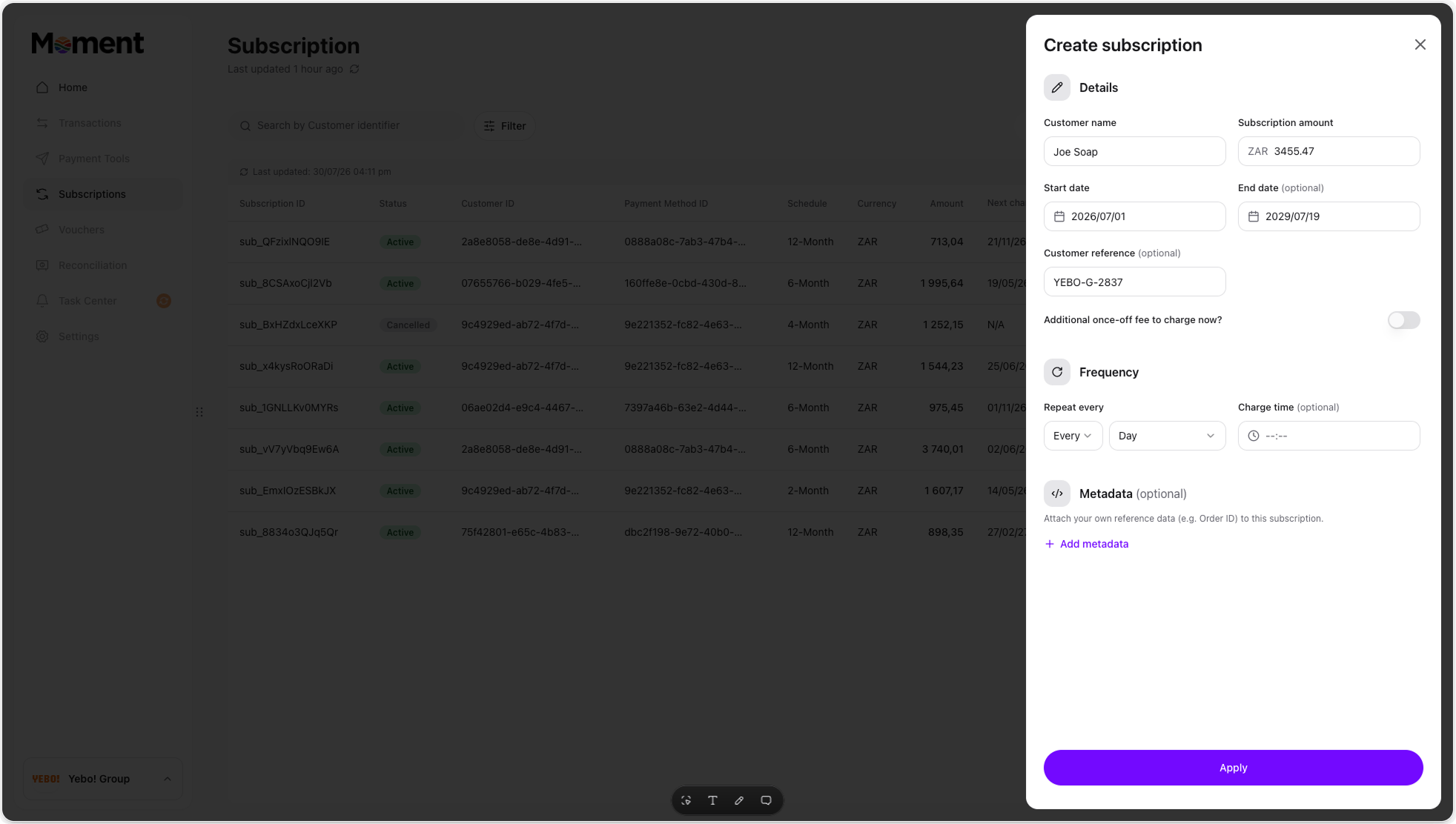
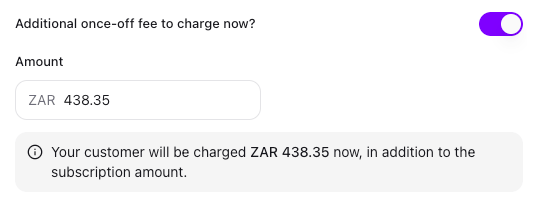
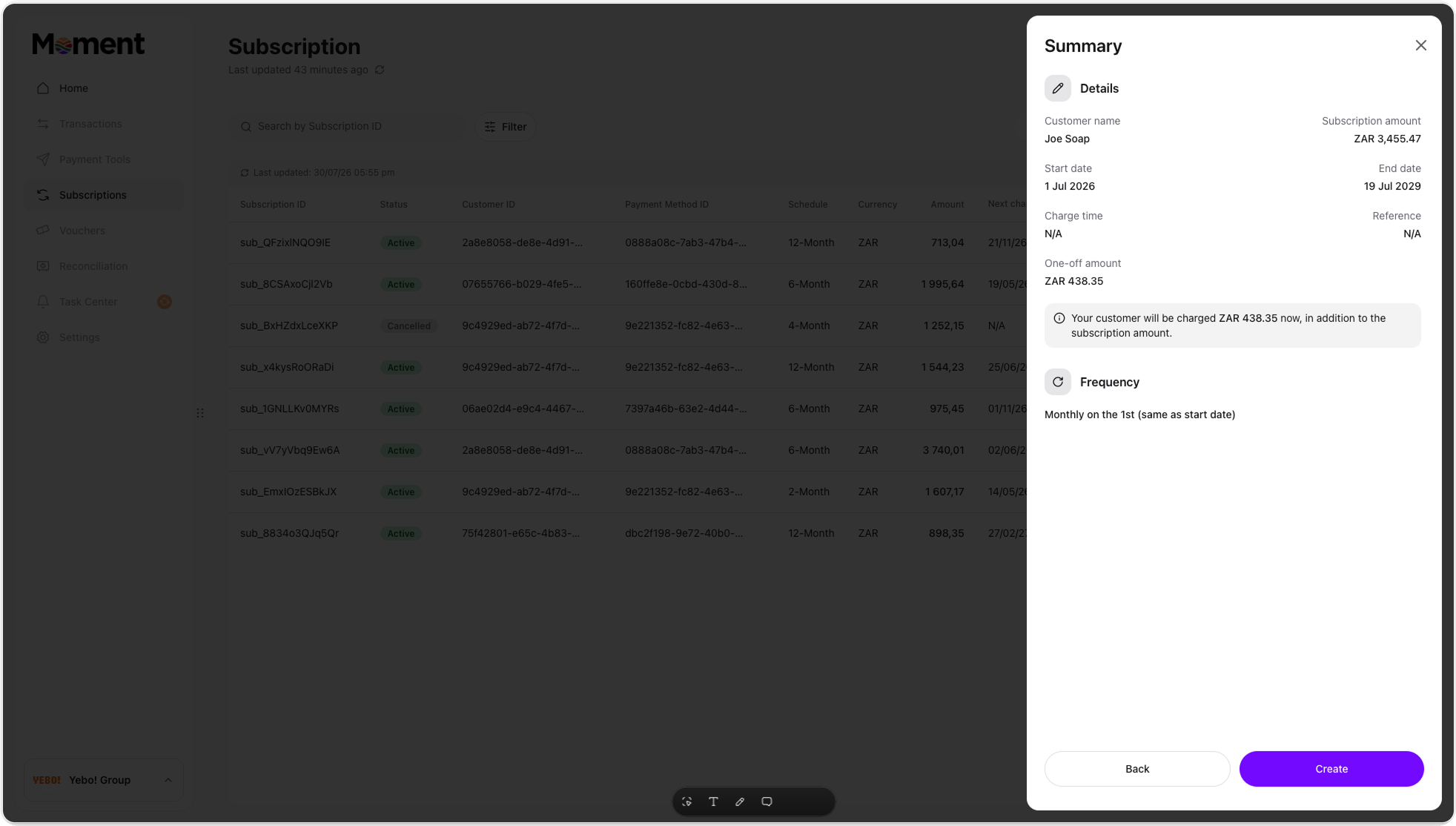
- Enter the customer name this subscription is for, and set the amount to be charged for the duration of their subscription.
- Choose how often the subscription should charge:
- Daily: repeats every day, or every N days.
- Weekly: pick one or more days of the week.
- Monthly: pick a day (for example “Every 2nd”) or a fixed date.
- Yearly: pick one or more months and a day.
- Set the first charge date. This is when the subscription begins, and combined with the frequency, determines every future charge date.
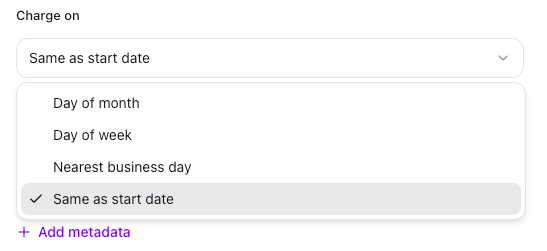
- Decide what happens if a charge date falls on a public holiday. This applies whether you’re charging on a fixed day of the month or a day of the week: choose to leave it as-is, or move it to the nearest, previous, or next business day.
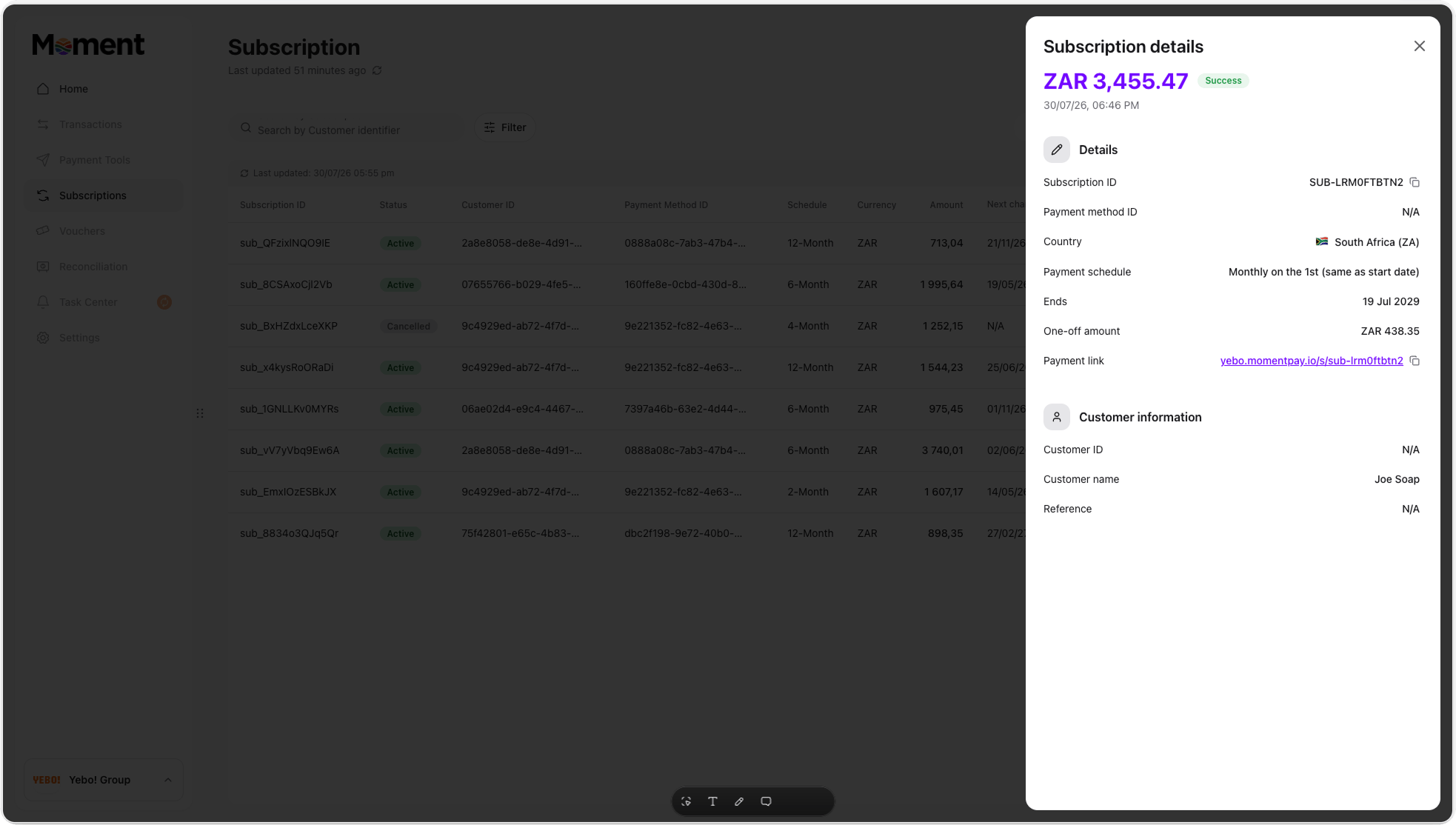
Managing an existing subscription
Click into any subscription from the list to view its details: schedule, status, upcoming charge, and past payment attempts. From here you can cancel the subscription permanently.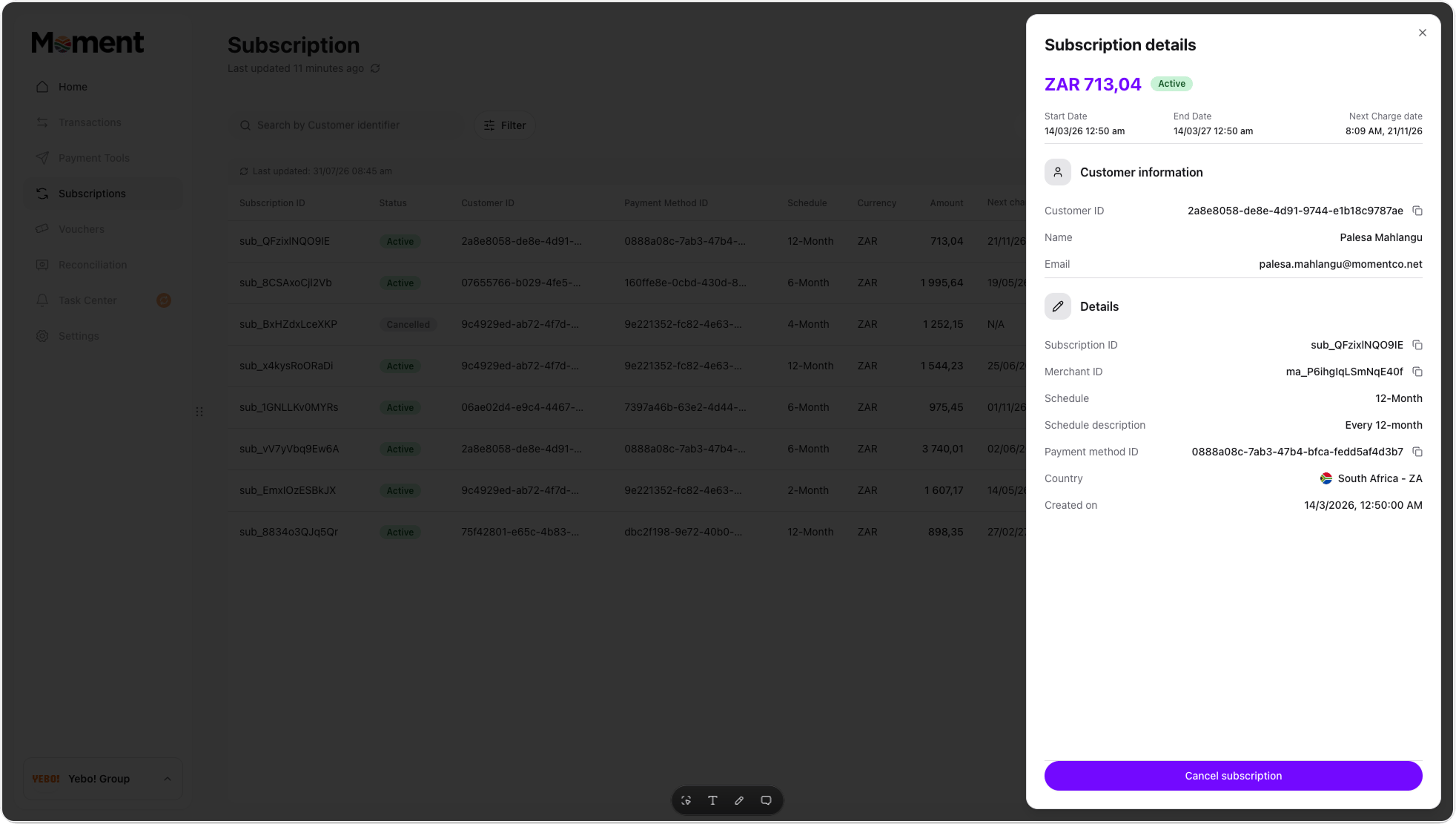
Good to know
As you configure a schedule, Moment checks it against a few known patterns and either offers to simplify it or blocks it outright.Exact equivalents: nudged, with a one-click switch
If your configuration works out to be mathematically identical to a simpler schedule, you’ll see a Switch to X button:
You can accept the switch or dismiss it and keep your original setup. These are nudges, not requirements.
Approximate look-alikes: drift warning only, no switch
Some configurations look like they’d match a simpler schedule but don’t quite, because months vary in length. These show a warning explaining the drift, with no switch button since there’s no exact equivalent to switch to:- Daily, repeating every 28 to 31 days
- Weekly, repeating every 4 weeks