At the top of the checkout page, the customer sees the total amount they are about to pay (for example, Pay ZAR 600.00).Checkout displays only the payment methods enabled by the configuration and supported in the customer’s region.Aavailable categories may include:
- Cards
- Banks
- EFTs
- Wallets
- Pay-in-person
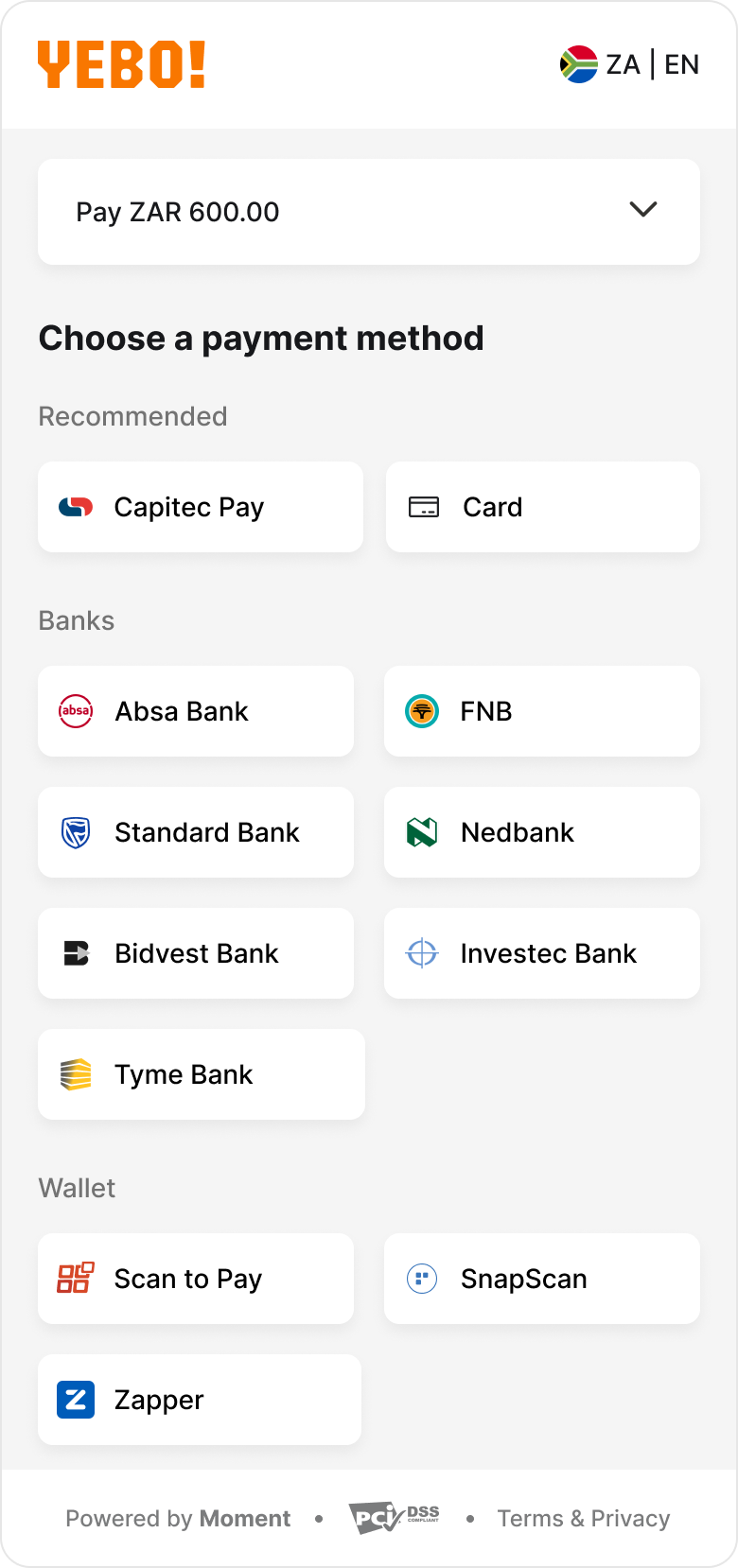
Categories of payment methods flows
Capitec pay
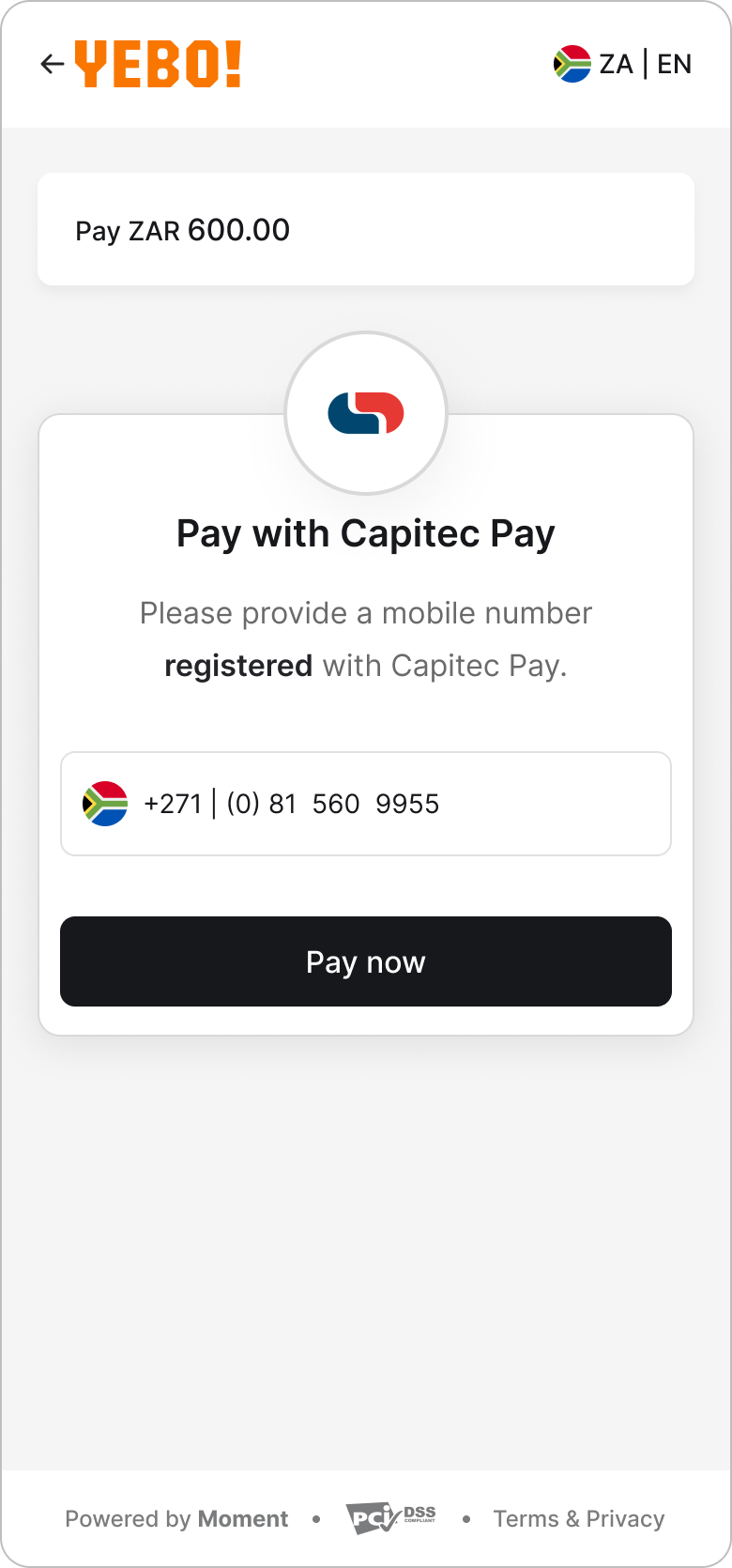
Capitec Pay is a bank-redirect method that allows customers to approve the payment securely inside the Capitec app. After selecting Capitec Pay, the customer is redirected to Capitec’s web experience.Step 1: Enter phone numberThe customer enters their Capitec Pay number to initiate the request.
- The customer can navigate back before initiating the request.
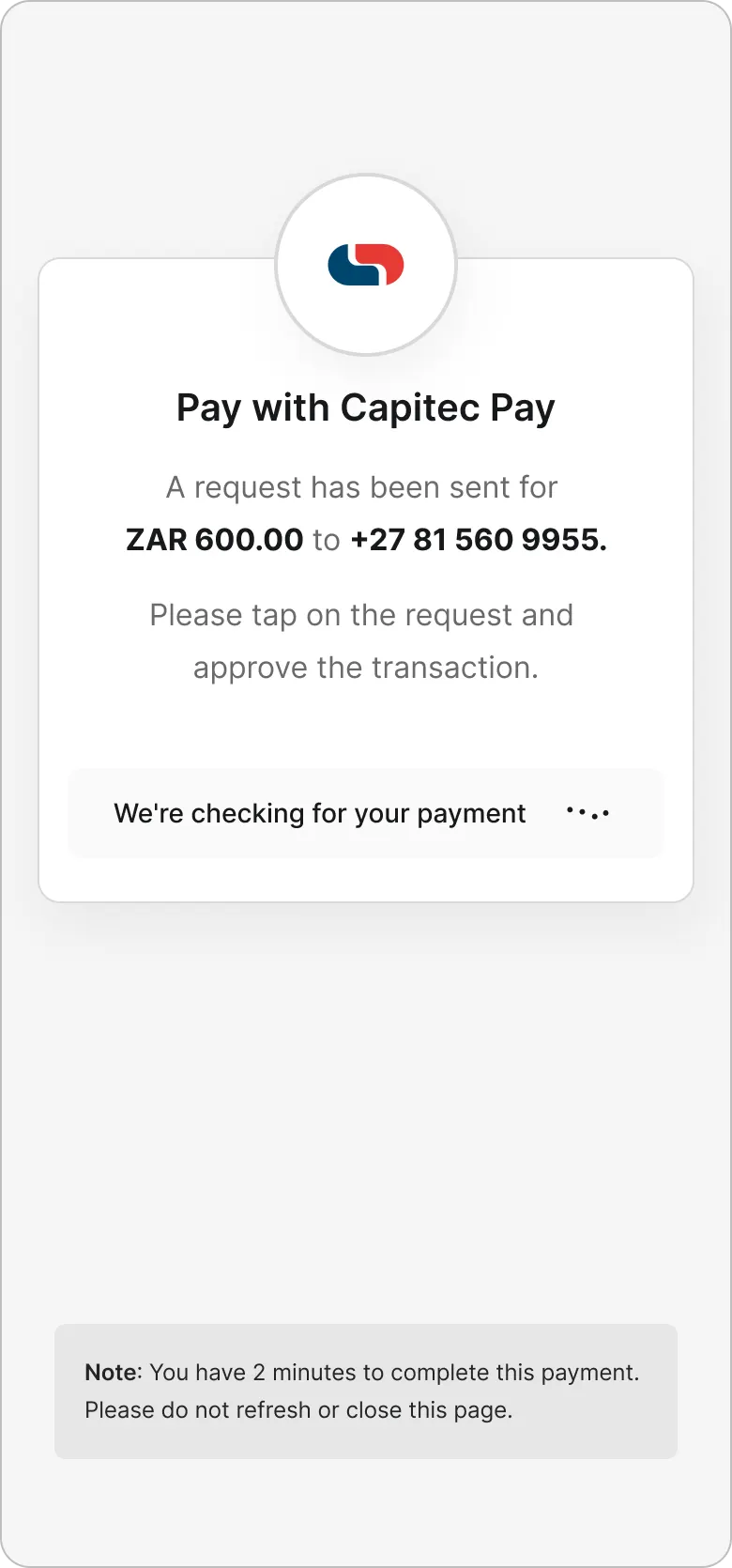
Step 2: ConfirmationA confirmation screen indicates that a push notification has been sent to the Capitec app. The customer must approve the payment within 3 minutes.
- Once initiated, the request cannot be cancelled from this flow.
- Checkout polls for status updates until the payment is successful or expires.
Banks - EFT
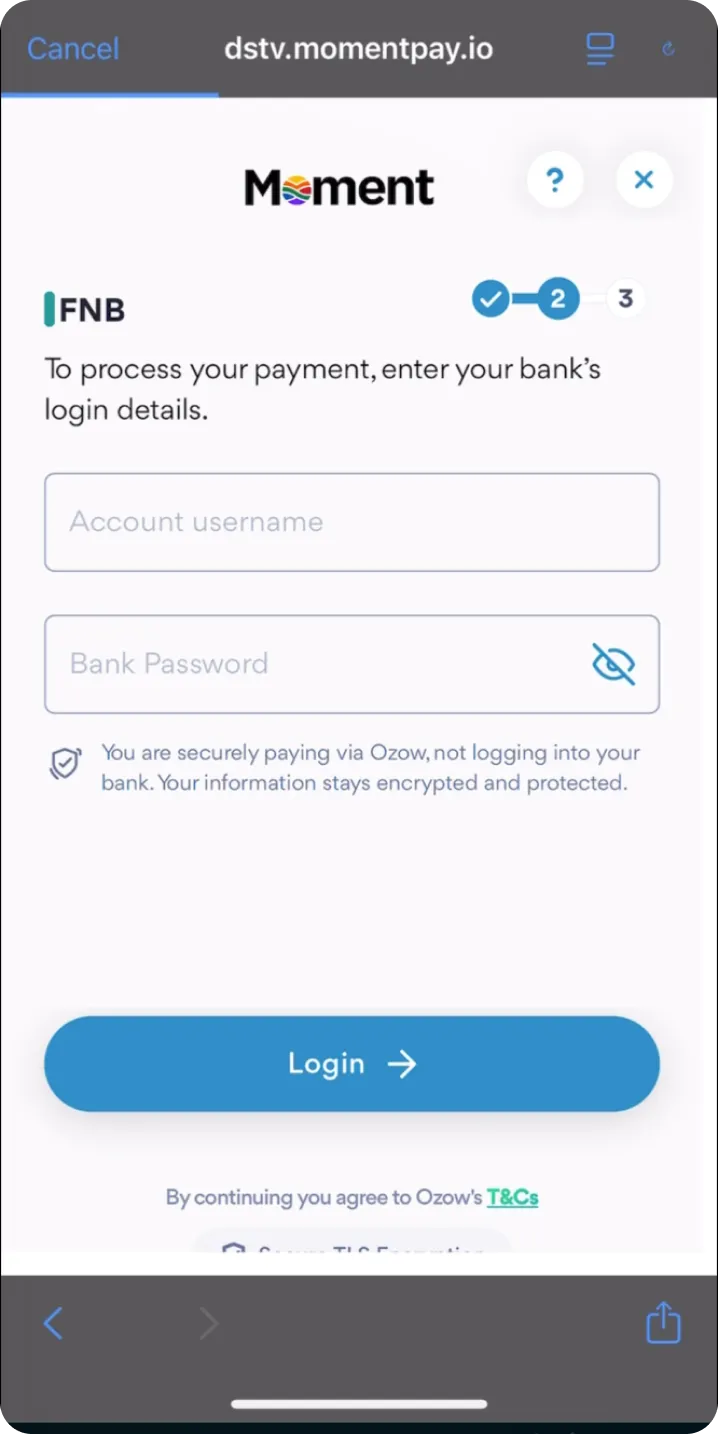
EFT allows customers to complete a payment through their bank’s online or mobile banking environment. After selecting EFT, the customer proceeds through bank selection and redirection.Redirect to bankAfter selecting a bank at the first step of checkout, the customer is redirected to to the bank’s secure online or mobile banking environment to log in and approve the payment. (see FNB example)Only merchant-enabled and region-supported banks are displayed. Once redirected, the approval process takes place entirely within the bank’s system.
Wallets
Wallet-based methods such as SnapScan, Zapper, and Scan to Pay follow a redirect flowStep 1: Redirect to wallet (e.g. Snapscan)The customer is transferred to the wallet app or wallet web experience to review and approve the transaction.
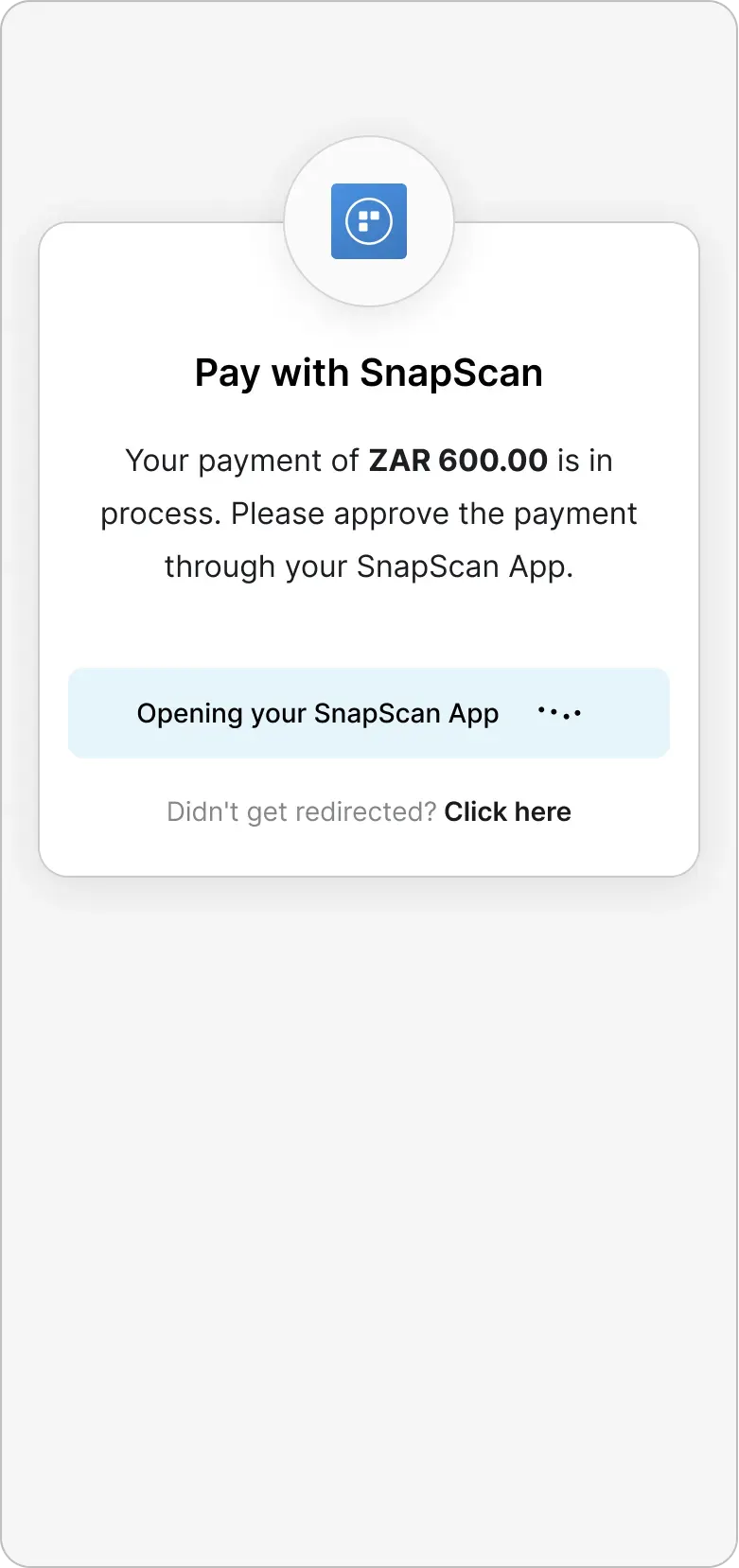
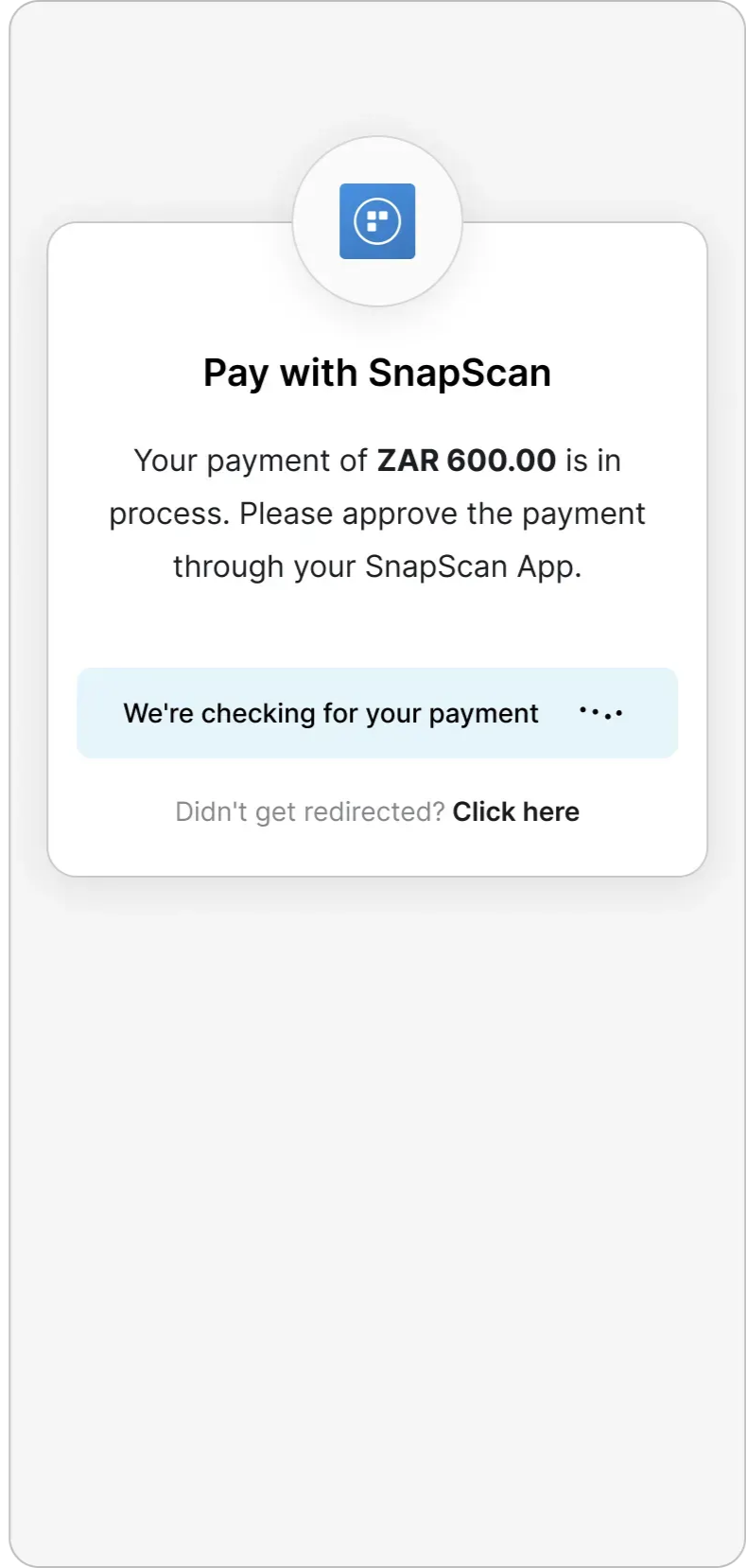
Step 2: Approval and status handlingOnce the payment request is initiated, it cannot be cancelled from the checkout flow.Checkout pulls for transaction status and automatically updates until the payment is successful or expires.After approval (or expiry), the customer is returned to checkout with the final transaction status.
Instructions-Only Payment Methods
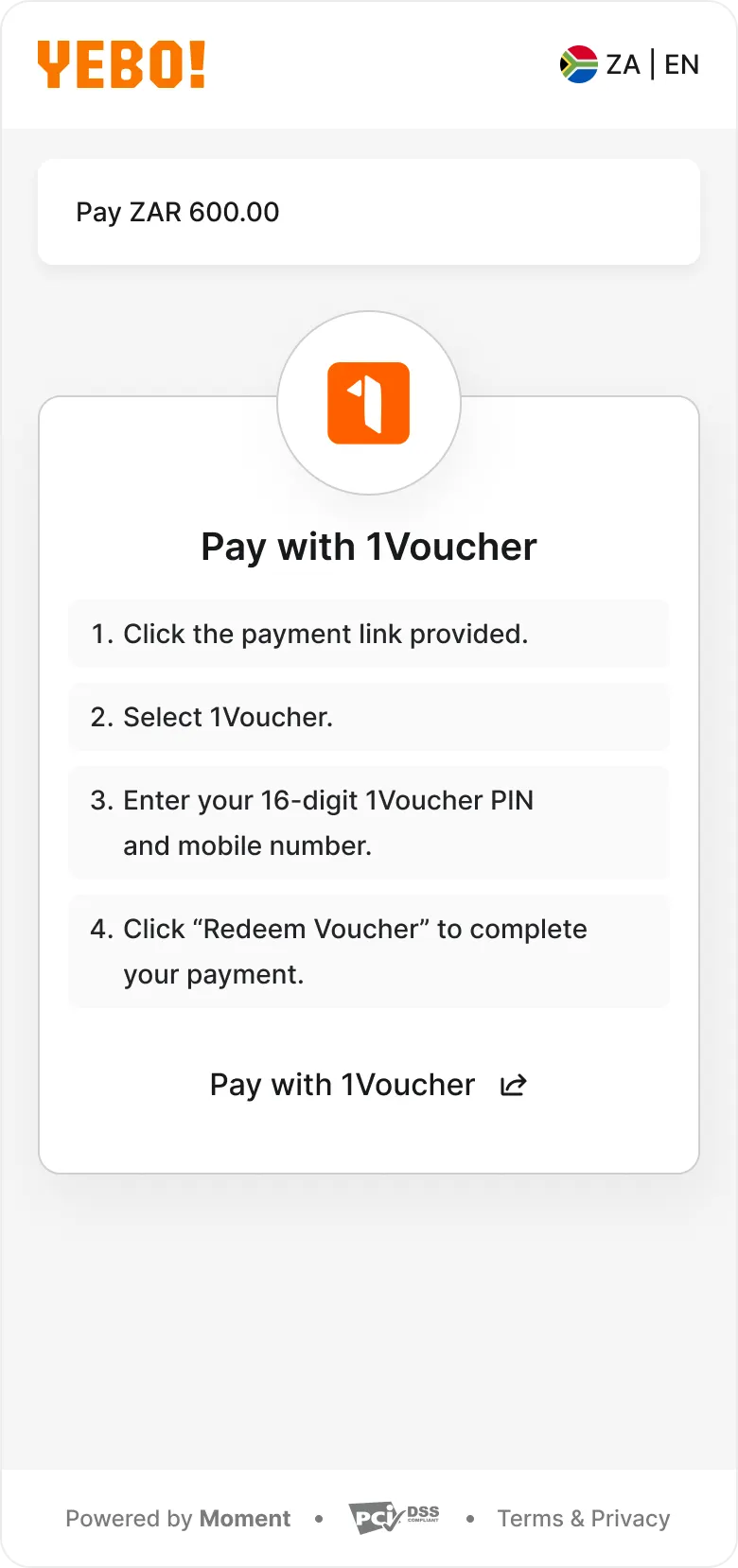
Some payment methods are instructions-only: instead of completing payment inside checkout, the customer is shown clear instructions for how to complete the payment in an external channel (for example, a voucher flow, USSD, in-app steps, or an offline action).Step 1: InstructionsAfter selecting an instructions-only method, the customer sees the steps they need to follow to complete the payment. Depending on the method, they may also be redirected to a partner page or provider flow.Step 2: Completion and status handlingCheckout monitors the payment status (where supported) and updates automatically until the payment is successful, failed, or expires. The customer then sees the final status in checkout.
Pay in person
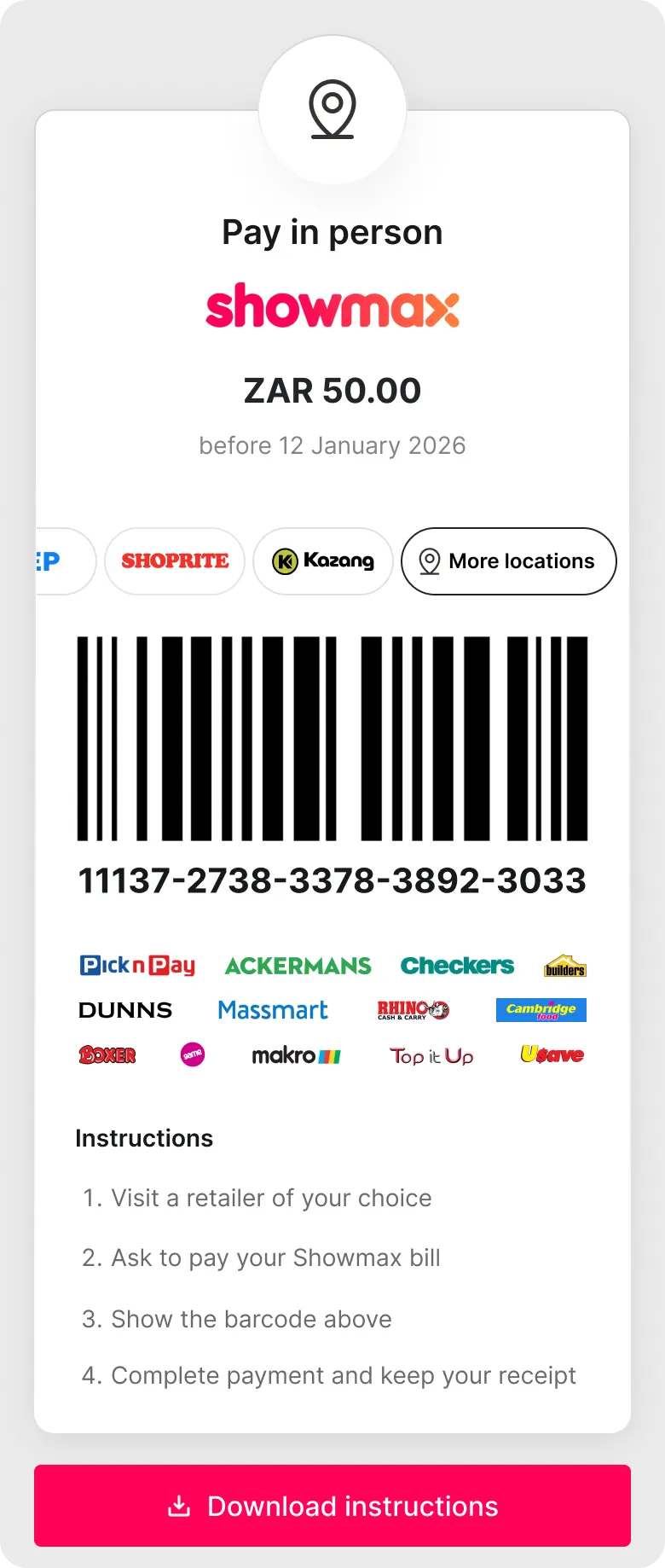
Pay-in-person enables customers to complete payment offline at a supported retailer or agent. See full list here →Step 1: Choose retailer or agentThe customer selects a merchant-enabled retailer or agent.Only configured retailers are displayed.Step 2: Review payment detailsThe customer sees:
- Payment amount
- Merchant name and branding
- Payment deadline (if applicable)
- Barcode or Numerical Code for in-store payment
Payment Status
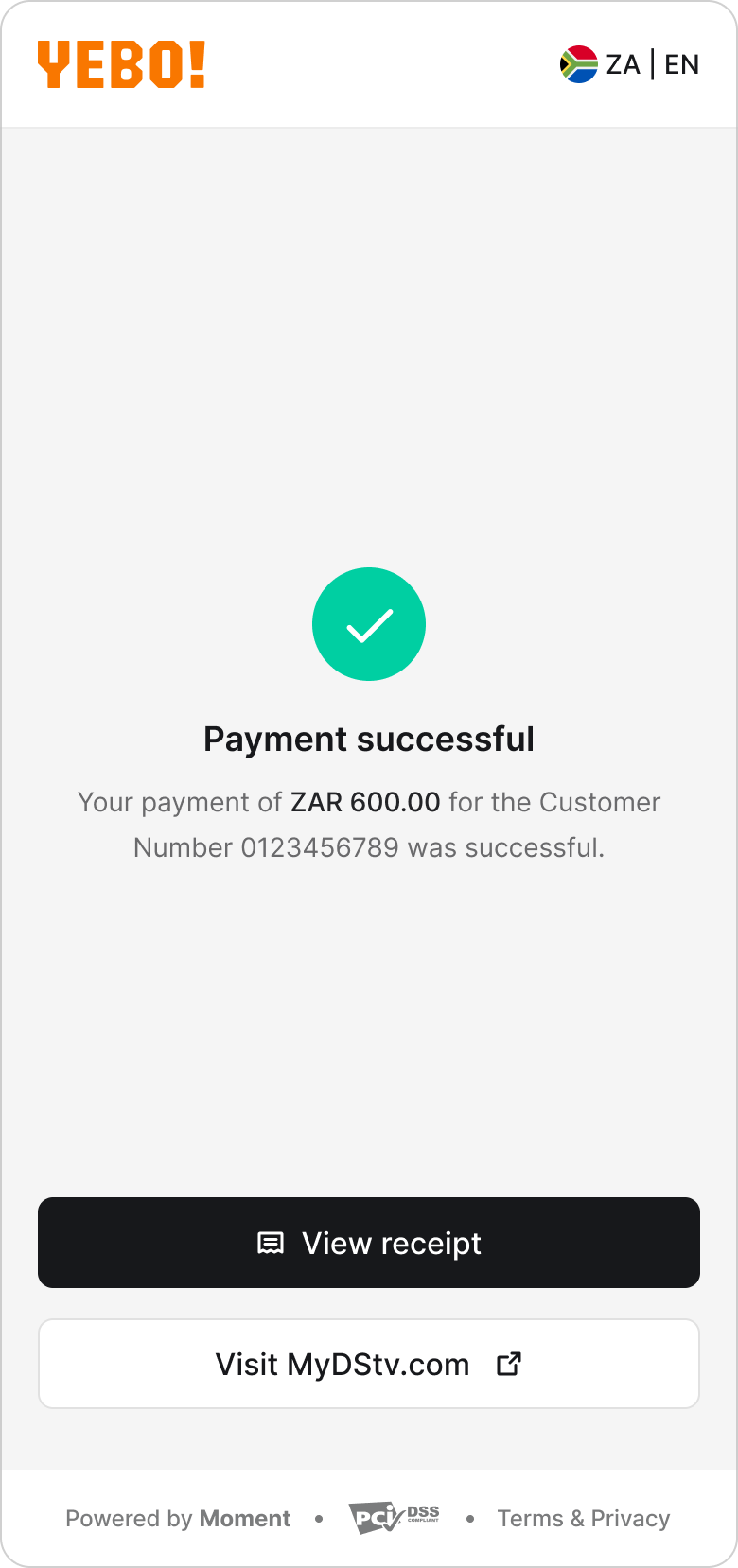
Successful Payment
After approval within the relevant flow, the customer is redirected to:- The merchant-defined success URL, or
- The Moment success screen (see screenshot)
Failed or Expired Payment
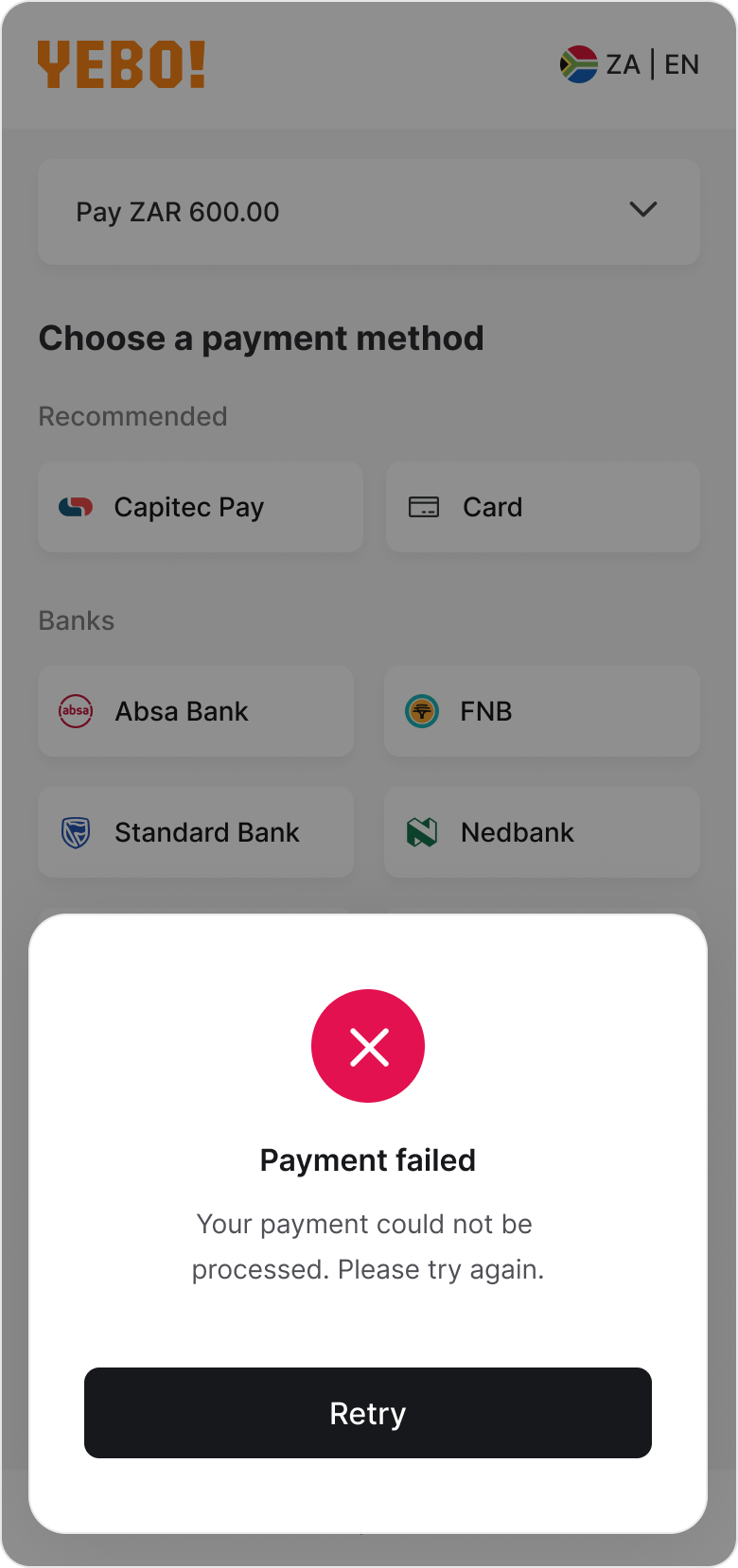
If the payment fails or expires:- The customer is returned to checkout.
- A status message is displayed.
- The customer may retry or select a different payment method.