

There are two integration modes, configured using
payment_method_selection in options.checkout_options:
- Gateway mode: Moment Checkout displays and manages payment method selection. The customer chooses how to pay within the hosted checkout. This is the default and the recommended pattern.
- Merchant-controlled mode: Your checkout manages payment method selection. When the customer proceeds, you create a Payment Session for the selected method and redirect to Moment Checkout to complete the payment.
This guide builds on the One-Time Payments quickstart. If you have not created a one-time payment session before, start there.
Prerequisites
- A test API key. See Authentication.
Gateway mode
payment_method_selection defaults to gateway and does not need to be set explicitly.Create a Payment Session with the payment methods you want to make available in
visible_payment_methods, then redirect the customer to the returned session_url. Moment Checkout displays the available methods, manages selection, and completes the payment. On payment failure, the customer stays within Moment Checkout and can retry or switch to another available method without returning to your checkout.This is the recommended pattern because Moment Checkout manages the complete payment experience, which typically gives better conversion with the least integration effort.
Step 1 (optional): Restrict the visible payment methods
Addvisible_payment_methods to options.checkout_options. Pass an array of the payment method types you want to display. Only these methods will appear on the checkout.
For example, to support Capitec Pay (capitec_pay) and Card (card):
id can be used to match the webhook event.
session_url returned when the Payment Session is created.
An alternative to redirecting is to use our SDK to implement a modal or pop-up styled hosted checkout. See Libraries and SDKs.
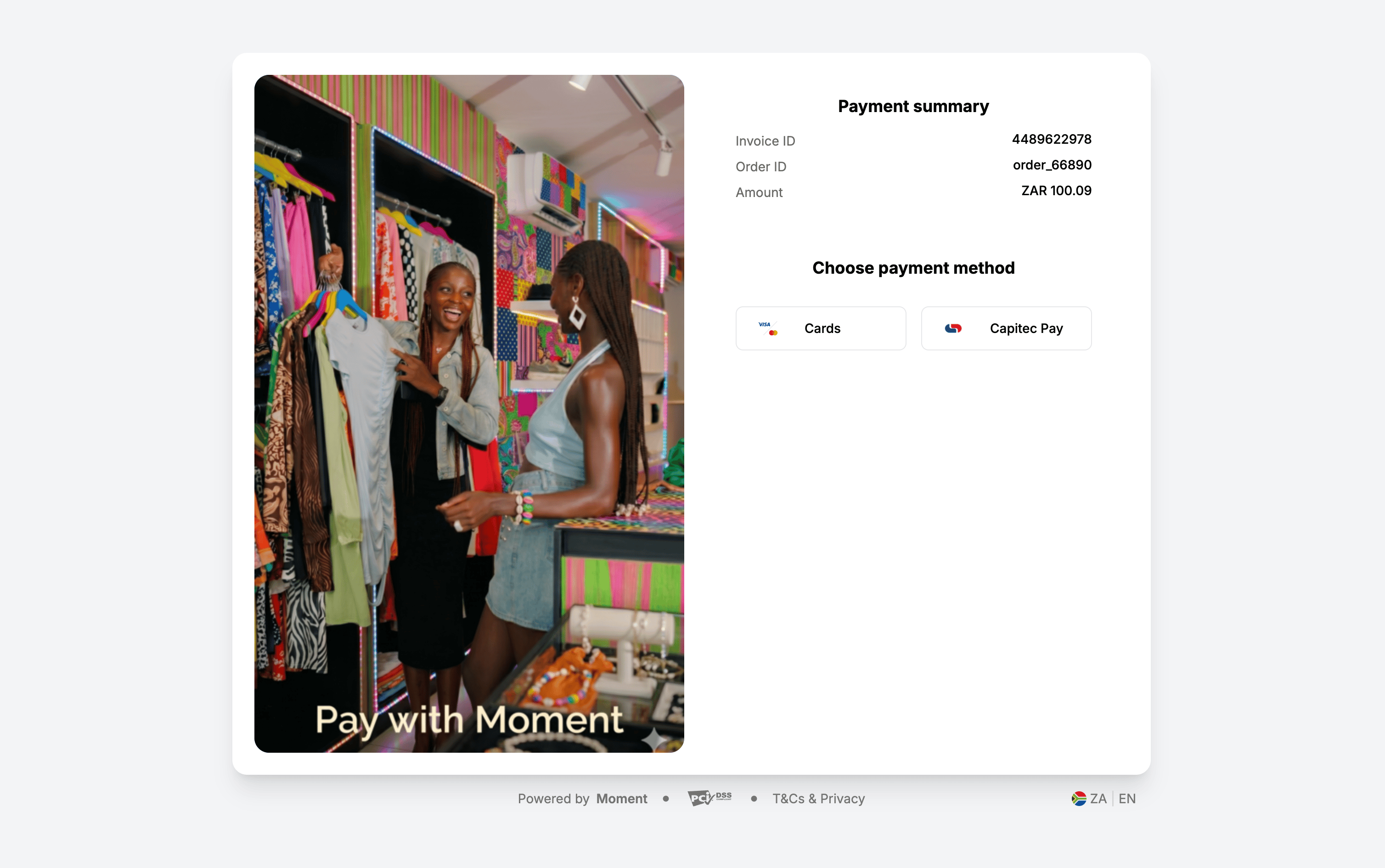
If you pass only one payment method in
visible_payment_methods, that method is pre-selected and the customer is taken straight into that payment method’s journey. For example, if cards is the only method passed, the customer is taken directly to the card details page.Step 2 (optional): Pre-select a payment method
Whenvisible_payment_methods contains more than one method, you can pre-select one of them with selected_payment_method. The customer is taken directly into that payment method’s journey without having to choose on the selection screen.
capitec_pay), but Card (card) remains available if the customer chooses that instead:
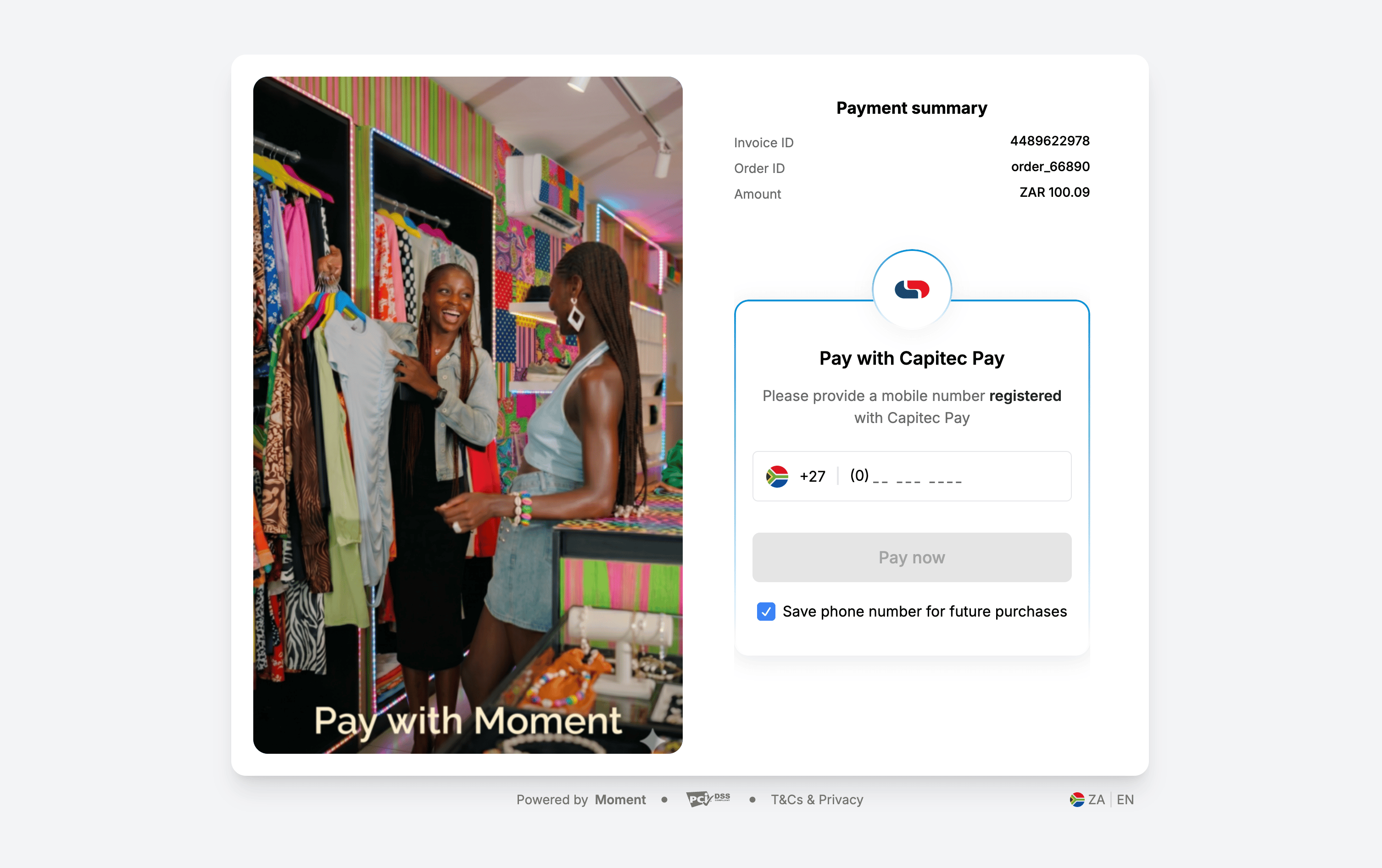
Merchant-controlled mode
Setpayment_method_selection to merchant in options.checkout_options to enable this mode. A return_url is required. On payment failure, Moment automatically redirects the customer back to your return_url so your checkout can handle the outcome.Your checkout displays and manages payment method selection. When the customer proceeds, create a Payment Session with
visible_payment_methods, selected_payment_method, or both. Moment Checkout opens directly into the selected method’s flow.On failure, the customer returns to your checkout. Rather than creating a new Payment Session, call Complete Payment Session on the existing session with the customer’s new selection. Moment Checkout redirects the customer to the updated method.
Step 1: Display payment methods in your checkout
Display the payment methods you want to make available using your own checkout interface. Your integration is responsible for determining which payment methods to display and mapping each option to its corresponding Moment payment method type.Step 2: Create a Payment Session for the selected method
When the customer selects a payment method and proceeds to pay, create a Payment Session from your server. Passvisible_payment_methods, selected_payment_method, or both. Set payment_method_selection to merchant and include a return_url so Moment knows where to redirect the customer after each payment attempt.
For example, if the customer selects Capitec Pay:
id can be used to match the webhook event.
session_url returned when the Payment Session is created.
An alternative to redirecting is to use our SDK to implement a modal or pop-up styled hosted checkout. See Libraries and SDKs.
capitec_pay) as the only option:
Step 3 (optional): Pre-fill payment method details
When you know the customer’s phone number in advance (for example from a previous session or their account profile), you can pass it when creating the Payment Session to reduce the steps required to complete the payment. This applies to mobile money payment methods (for example M-Pesa, MTN MoMo, Airtel Money) and Capitec Pay. Pass the phone number underpayment_method_options using the corresponding key (mobile_money or capitec_pay). The phone number must be in E.164 format and its country must match the session country.
Use prefill_mode to control how the checkout handles the pre-filled value:
review: The pre-filled value is shown to the customer to confirm. They can edit it before proceeding.auto_advance: The checkout skips the review step and advances automatically. Use this when you are confident the data is correct and want to minimise the steps to complete payment.
capitec_pay with mobile_money and supply the customer’s registered mobile money number:
Step 4: Handle the customer’s return
After the payment attempt succeeds or fails, Moment Checkout automatically redirects the customer to the configuredreturn_url.
When the customer returns, retrieve the Payment Session to display the latest payment status. Use webhooks as the authoritative source for asynchronous payment status updates.
If the payment was unsuccessful, display the payment method selection in your checkout. When the customer proceeds with a new or the same selection, call Complete Payment Session on the existing session with the updated selected_payment_method and visible_payment_methods. This updates the session in place without requiring a new Payment Session to be created, then redirects the customer back to Moment Checkout for the new selection.
Supported Payment Methods
The following payment methods can be configured usingvisible_payment_methods and selected_payment_method:
Bank Variant Reference
Forpay_by_bank, you can target a single bank by passing bank_payments.pay_by_bank.{variant} in visible_payment_methods. Only that bank will appear on the checkout.
- South Africa
- Kenya
- Nigeria
Payment method identifier formats
visible_payment_methods and selected_payment_method accept identifiers in the following formats:
Example: using
category.type
category only
selected_payment_method, the value must resolve to a single payment method and must be present in visible_payment_methods. How it can be specified depends on how visible_payment_methods was set:
- If
visible_payment_methodsspecifies only acategory,selected_payment_methodcan becategory.typeor justtype. - If
visible_payment_methodsspecifies atype,selected_payment_methodcannot be a category on its own. - If
visible_payment_methodsspecifies acategory.type.variant,selected_payment_methodmust use the same three-level format.
selected_payment_method
Rules for
visible_payment_methods:- Array of strings. Must be a strict subset of the payment methods enabled for the merchant account.
- When not specified, all payment methods enabled for the merchant and available for the session’s country and currency are visible.
- If only one method is passed, that method is pre-selected and the customer is taken straight into that payment method’s journey.
- For
pay_by_bank, target a single bank usingbank_payments.pay_by_bank.{variant}. See Bank Variant Reference for valid values.
Rules for
selected_payment_method:- String. Accepts one value only.
- The value must be present in
visible_payment_methods. - Applies only when
visible_payment_methodscontains more than one entry.
Match payment methods to the currency
The methods you request must be valid for the session’s country and currency. For example, a session created inZAR must list methods supported in South Africa.
If any method in visible_payment_methods is not supported for the session’s currency, the request fails with 400 Bad Request.
Launch the checkout, handle the webhook, and test
Launching the checkout, handling thepayment_session.completed webhook, verifying the signature, and testing are identical to the standard flow. See Quickstart: One-Time Payments for these steps.