

By default, Moment Checkout displays every payment method enabled for the merchant and available for the session’s country and currency. This guide shows how to limit the checkout to a specific method or a subset of methods, and how to pre-select one method so the customer is taken directly into that payment method’s flow
There are two typical integration patterns:
- Moment-hosted payment method selection: Moment Checkout displays the payment methods specified in
visible_payment_methodsand allows the customer to select how they want to pay. Moment Checkout manages both payment method selection and payment collection. This is the standard integration pattern. - Merchant-controlled payment method selection: The merchant displays the payment methods and allows the customer to select how they want to pay within their own checkout. The merchant then creates a Payment Session for the selected payment method and redirects the customer to Moment Checkout to complete the payment.
This guide builds on the One-Time Payments quickstart. If you have not created a one-time payment session before, start there.
Prerequisites
- A test API key. See Authentication.
- Familiarity with creating a one-time payment session and launching the hosted checkout. See Quickstart: One-Time Payments.
How it works
When you create a payment session, the response includes asession_url that renders the Moment hosted checkout. Without any additional configuration, the checkout lists all payment methods supported for the merchant and that transaction.To control this list, pass the
visible_payment_methods array inside options.checkout_options when you create the session. To pre-select one of those methods, add selected_payment_method.
If you pass only one payment method in the
visible_payment_methods array, then by default that payment method will be pre-selected and the user will be taken straight into that payment method’s journey.For example, if card is the only payment method passed in visible_payment_methods field then the user will be taken straight to the card information page to enter their card details.1. Moment-hosted payment method selection
Use this pattern when you want Moment Checkout to manage both payment method selection and payment collection.Create a Payment Session with the payment methods you want to make available in
visible_payment_methods, then redirect the customer to the returned session_url.Moment Checkout displays the available payment methods and allows the customer to select how they want to pay. The customer remains within the hosted checkout while completing the payment and, where additional attempts are available, can retry or select another payment method without returning to your checkout.
This is the standard integration pattern and provides the simplest integration because Moment Checkout manages the complete payment experience.
Step 1: Restrict the visible payment methods
Addvisible_payment_methods to options.checkout_options. Pass an array of the payment method types you want to display. Only these methods will appear on the checkout.
For example, to support Capitec Pay (capitec_pay) and Card (card):
id can be used to match the webhook event.
session_url returned when the Payment Session is created. The checkout will be restricted as follows:
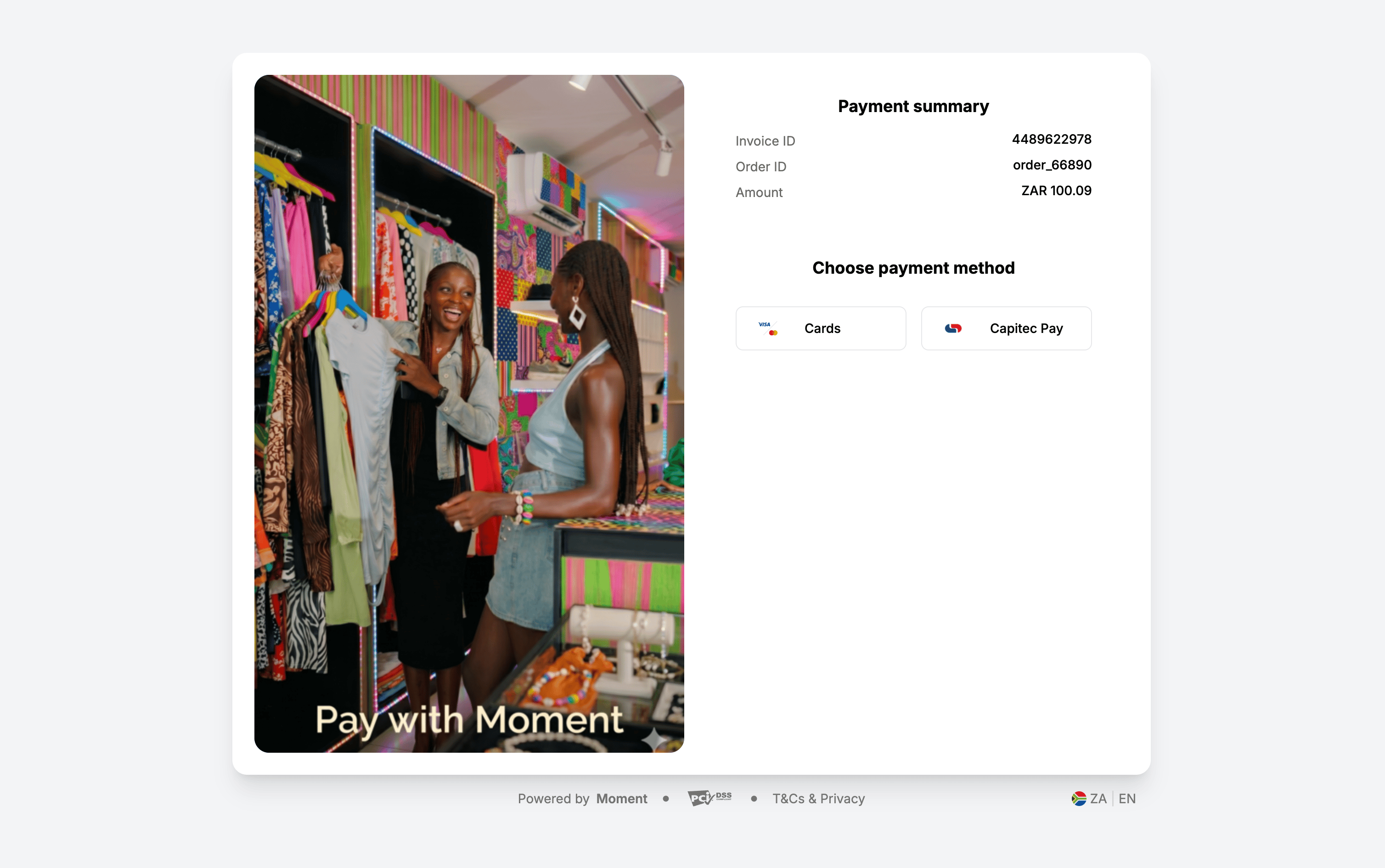
Step 2 (optional): Pre-select a payment method
Whenvisible_payment_methods contains more than one method, you can pre-select one of them with selected_payment_method. The pre-selected method is applied by default when the checkout loads, and the customer is taken directly into that payment method’s journey without having to choose it on the payment method selection screen.
capitec_pay) payment method, but the Card (card) payment method remains available if the customer chooses that instead:
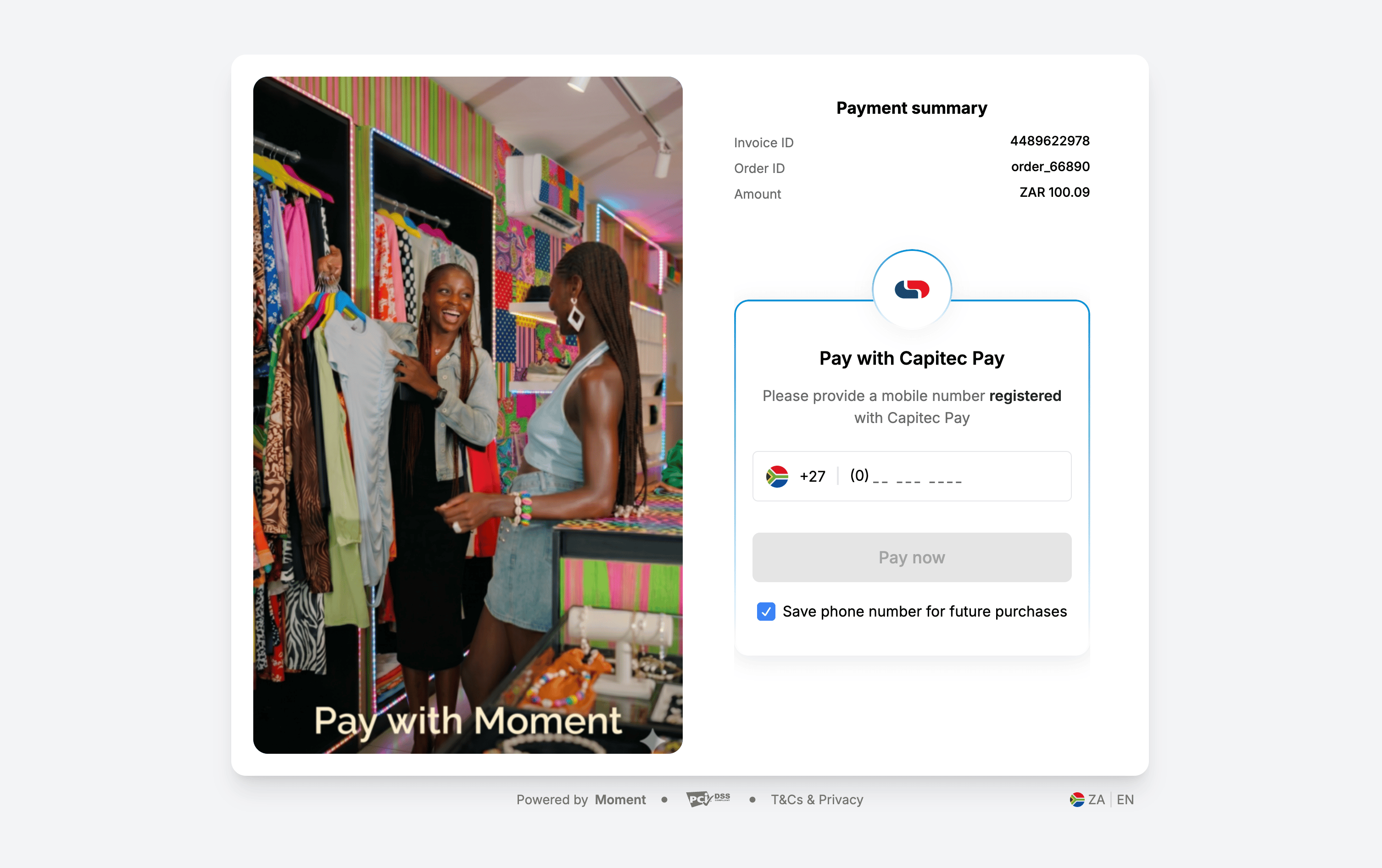
2. Merchant-controlled payment method selection
Use this pattern when you want to manage payment method selection within your own checkout while using Moment Checkout to complete the payment.Your checkout displays the available payment methods and allows the customer to select how they want to pay. When the customer proceeds with a selected payment method, create a Payment Session with that method as the only value in
visible_payment_methods.Because only one payment method is visible, Moment Checkout opens directly into the selected payment method’s flow without displaying the payment method selection screen.
Set
max_attempts to 1 so control returns to your checkout after the selected payment attempt succeeds or fails. Your checkout can then display the payment outcome or allow the customer to select another payment method.
This pattern allows you to own the payment method selection experience while using Moment Checkout to complete the selected payment method flow.
Step 1: Display payment methods in your checkout
Display the payment methods you want to make available using your own checkout interface. Your integration is responsible for determining which payment methods to display and mapping each option to its corresponding Moment payment method type.Step 2: Create a Payment Session for the selected payment method
When the customer selects a payment method and proceeds to pay, create a Payment Session from your server. Pass the selected payment method as the only value invisible_payment_methods and set max_attempts to 1.
For example, if the customer selects Capitec Pay:
id can be used to match the webhook event.
session_url returned when the Payment Session is created. The checkout will directly present the Capitec Pay (capitec_pay) payment method as the only option:
Step 3: Handle the customer’s return
After the payment attempt succeeds or fails, Moment Checkout redirects the customer to the configuredreturn_url.
When the customer returns, retrieve the Payment Session to display the latest payment status. Use webhooks as the authoritative source for asynchronous payment status updates.
If the payment was unsuccessful, you can allow the customer to select the same or a different payment method from your checkout. When the customer proceeds again, create a new Payment Session using the newly selected payment method (as per the earlier step above).
Supported payment method types
Pass any of the following string values invisible_payment_methods:
Rules for
visible_payment_methods:- It is an array of strings.
- The visible payment methods must be a strict subset of the enabled payment methods for the merchant account.
- When not specified all payment methods enabled for the merchant account and available for the session’s country and currency are visible.
- If you pass only one payment method, then by default that payment method will be pre-selected and the user will be taken straight into that payment method’s journey.
Rules for
selected_payment_method:- It is a string and accepts one value only.
-
The value must also be present in
visible_payment_methods. -
It applies only when
visible_payment_methodscontains more than one entry.
Match payment methods to the currency
The methods you request must be valid for the session’s country and currency. For example, a session created inZAR must list methods supported in South Africa.
If any method in visible_payment_methods is not supported for the session’s currency, the request fails with 400 Bad Request. See Payment Methods for the methods available per country and currency.
Launch the checkout, handle the webhook, and test
Launching the checkout, handling thepayment_session.completed webhook, verifying the signature, and testing are identical to the standard flow. See Quickstart: One-Time Payments for these steps.