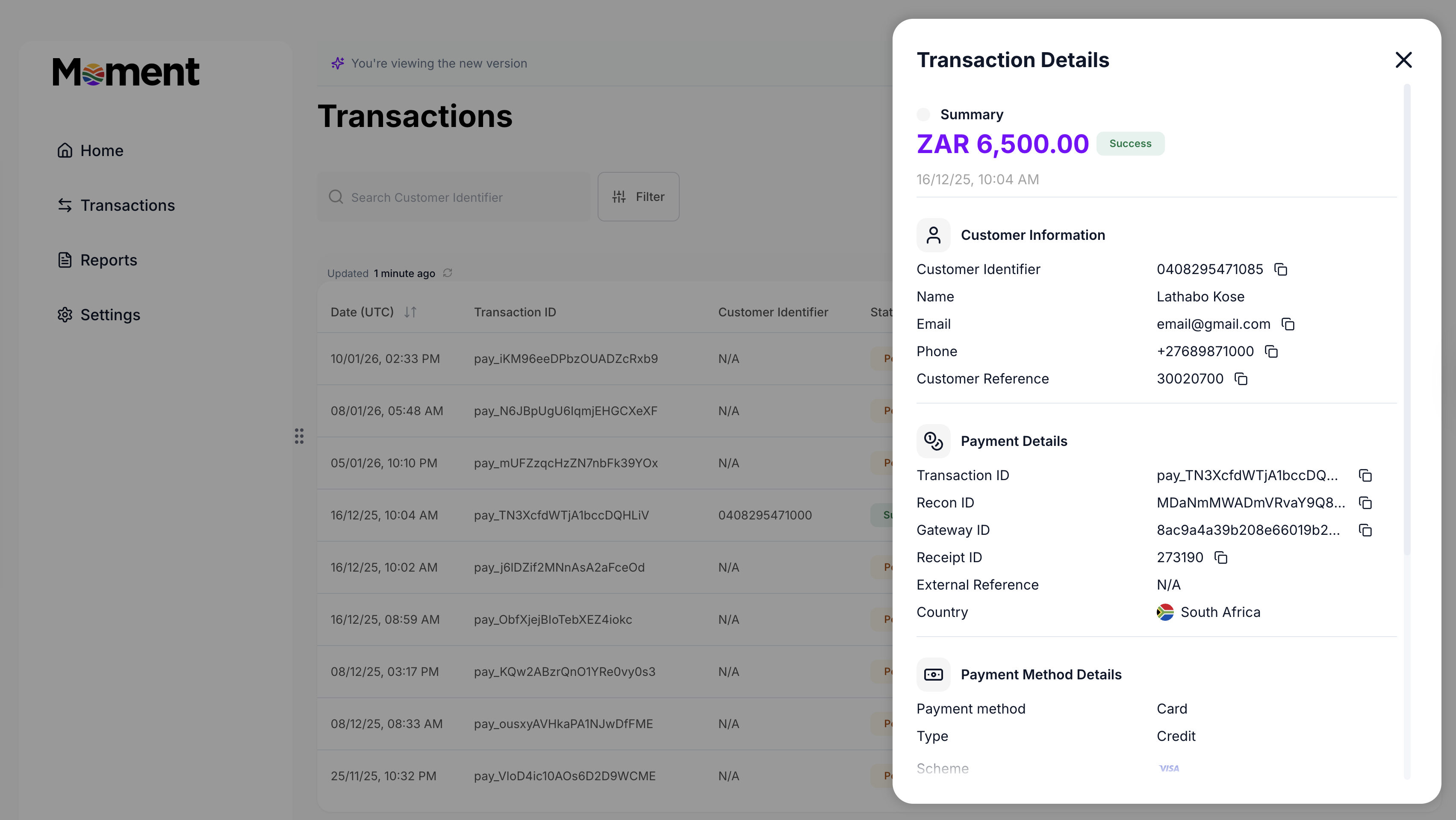
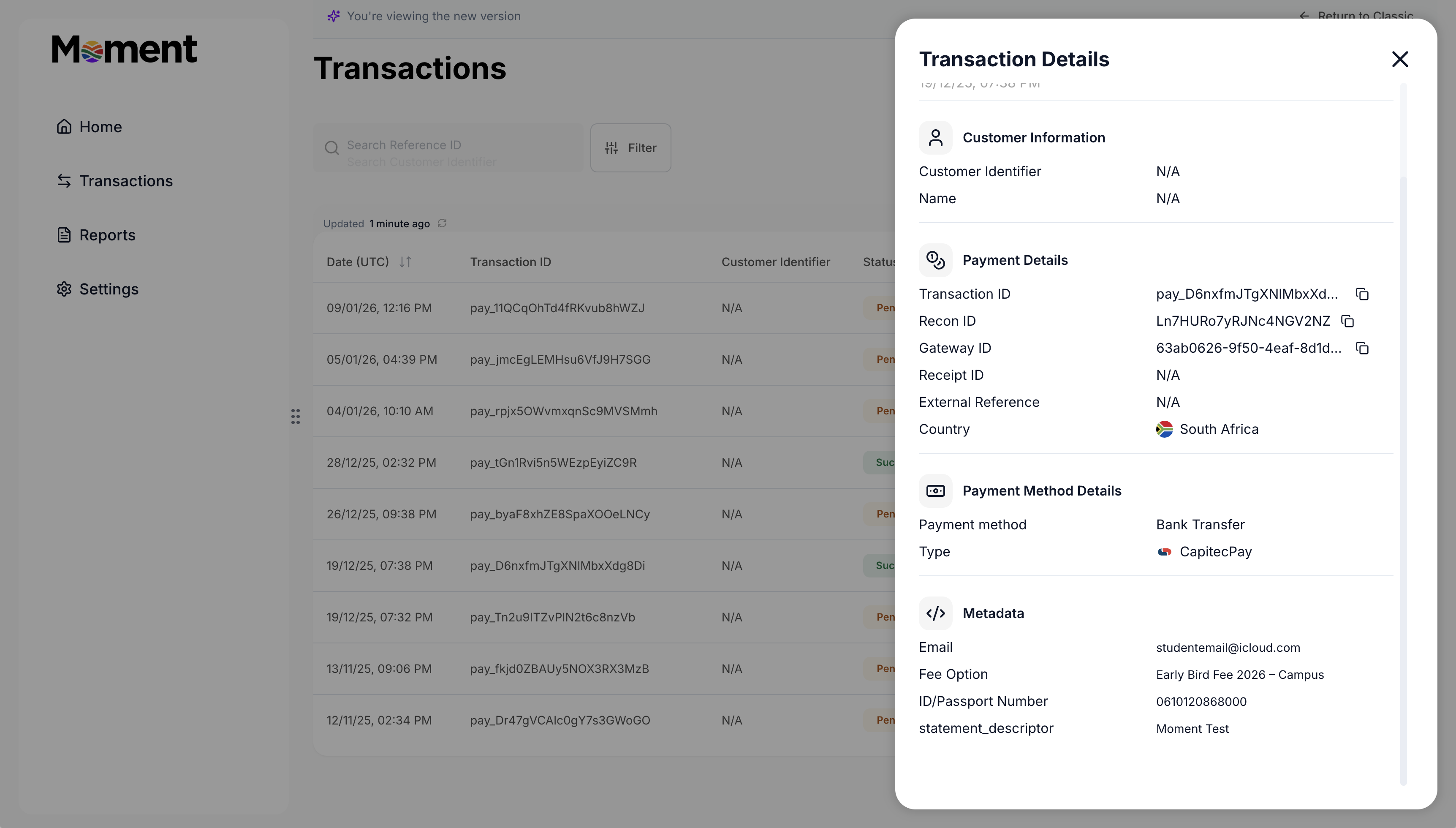
Transaction List and Detailed Filtering
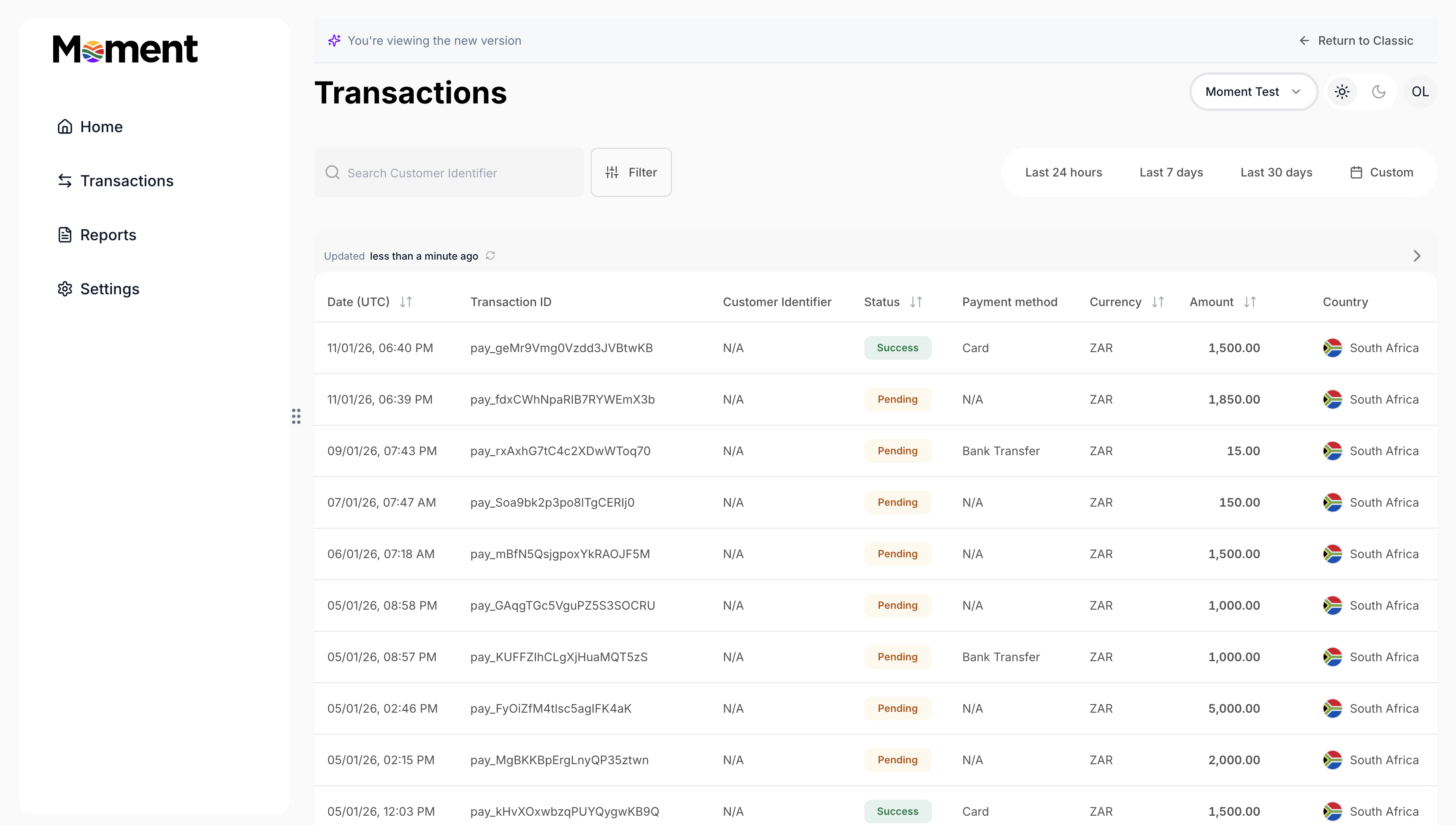

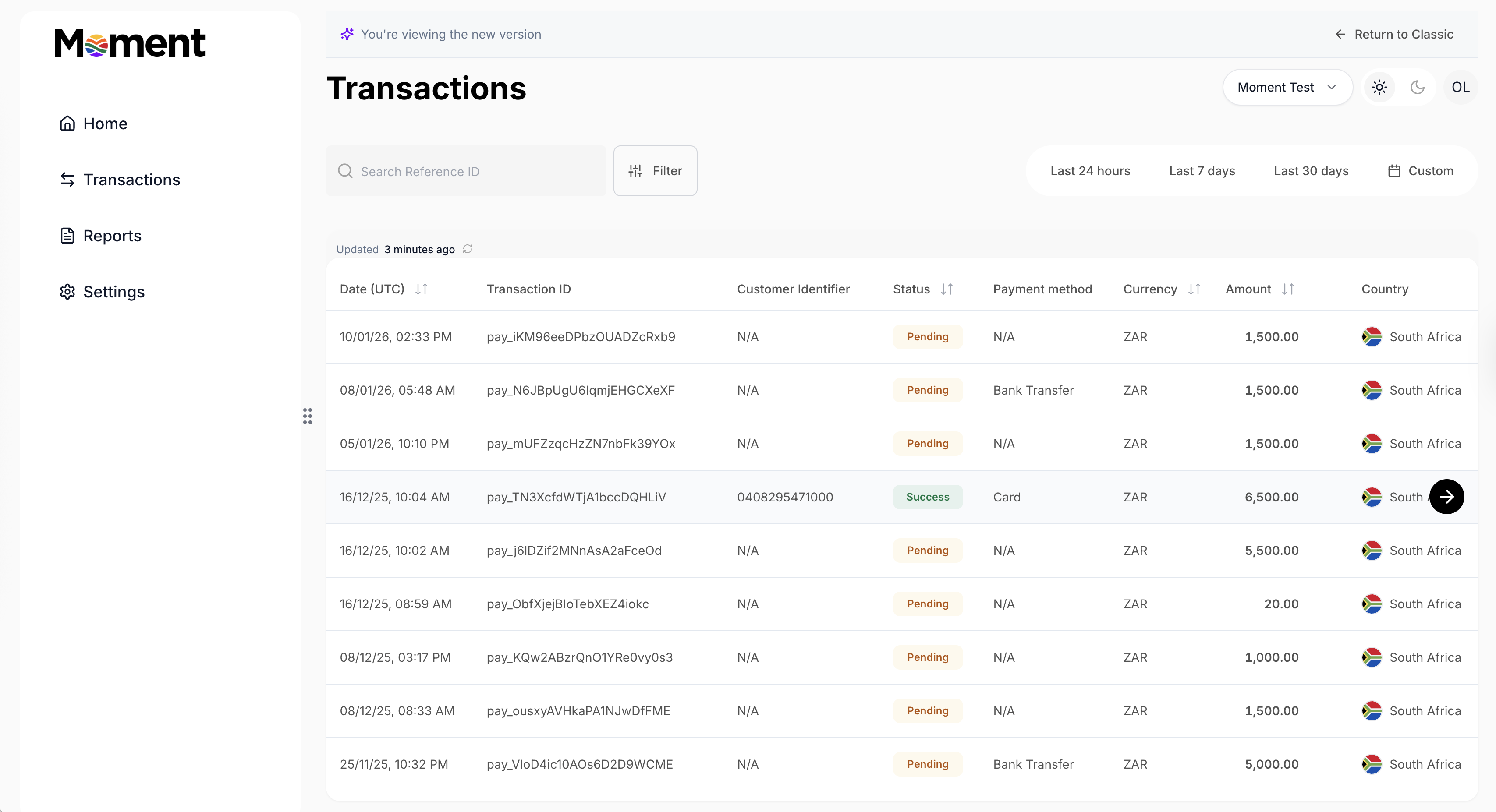
Filter Filter transactions by time frame—last 24 hours, last 7 days, last 30 days, or set a custom period to focus on what’s most relevant to you.

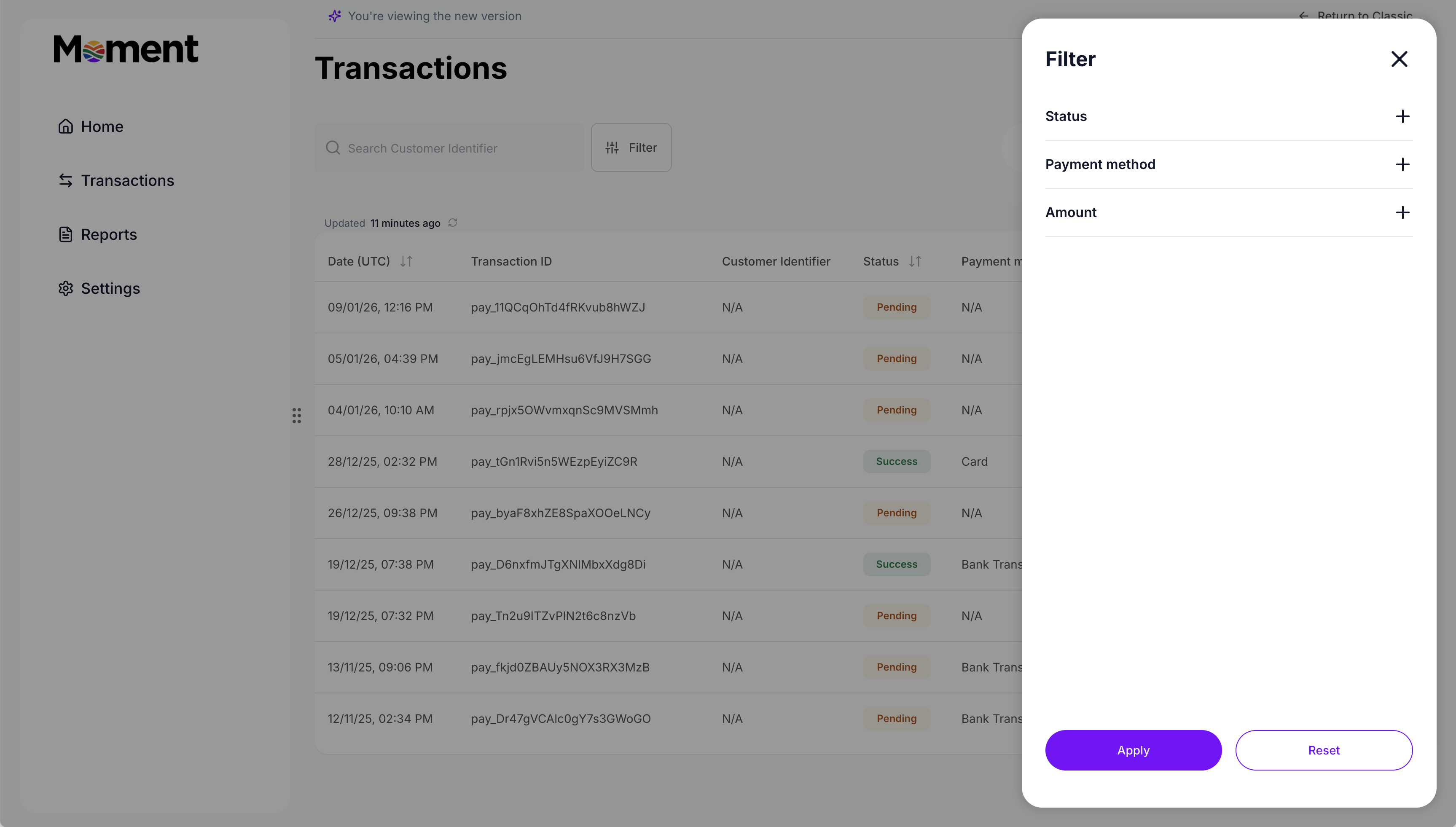
Advanced filters Search for specific transactions using various identifiers to find exactly what you need quickly. Use advanced filters to narrow transactions by status, payment method, or amount.
Search Search for specific transactions using various identifiers to find exactly what you need quickly. Use Reference ID, Customer Identifier, or any other data point available in Transaction Details.

Transaction Details
Review the transaction list to see all payments for both existing and new customers. Use the Customer Identifier column to distinguish them:- If a number is present, the payment was made by an existing customer.
- If it shows N/A, the payment was made by a new customer through Payment Pages (if set up).
Transaction details Click on any transaction in the list to view its details in a side panel. See the amount, status, timestamp, customer information, payment details, payment method information, and fulfillment status. For existing customers, customer information is already filled in.