> ## Documentation Index
> Fetch the complete documentation index at: https://docs.momentco.io/llms.txt
> Use this file to discover all available pages before exploring further.

# Create & Manage Payment Pages

Payment Pages make it easy to accept payments from your customers with just a few clicks. Set up custom payment forms, collect important details, and track every transaction in one place.

<video src="https://mintcdn.com/momentholdingslimited/ltrCqk19he2WwTGA/guides/resources/Payment_Pages_Overview.mp4?fit=max&auto=format&n=ltrCqk19he2WwTGA&q=85&s=4d389d7ad060ee4cace1b1720194b47e" controls={true} data-path="guides/resources/Payment_Pages_Overview.mp4" />

<br />

### How to Create and Manage a Payment Page

<br />

**Step 1:**

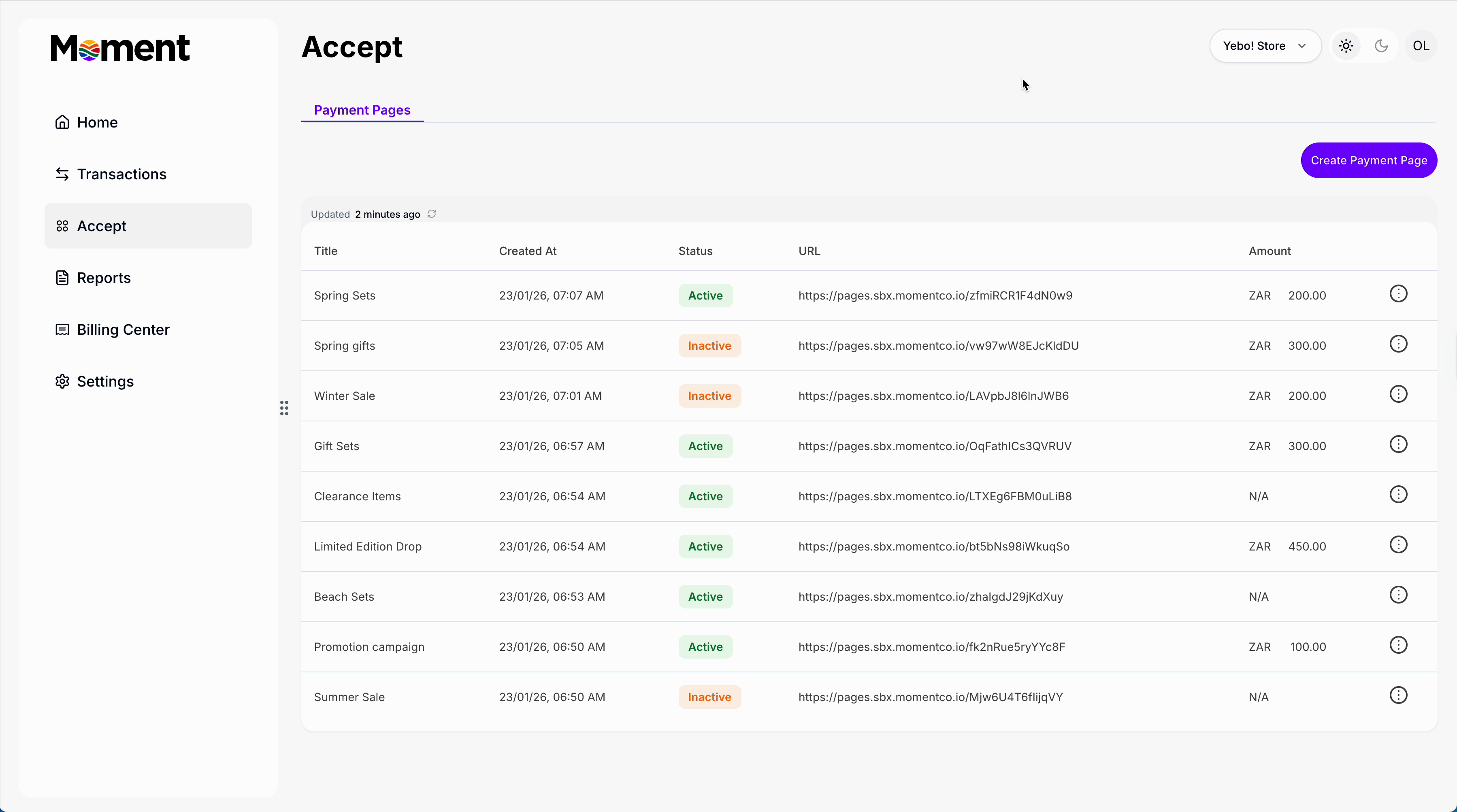
View all your existing payment pages in the summary table.

Quickly see which pages are active and ready to accept payments.
<img src="https://mintcdn.com/momentholdingslimited/ltrCqk19he2WwTGA/guides/resources/pptable.png?fit=max&auto=format&n=ltrCqk19he2WwTGA&q=85&s=93307f957d8baee645ffe2b30986b6f4" alt="Pptable" width="3598" height="2006" data-path="guides/resources/pptable.png" />

<br />

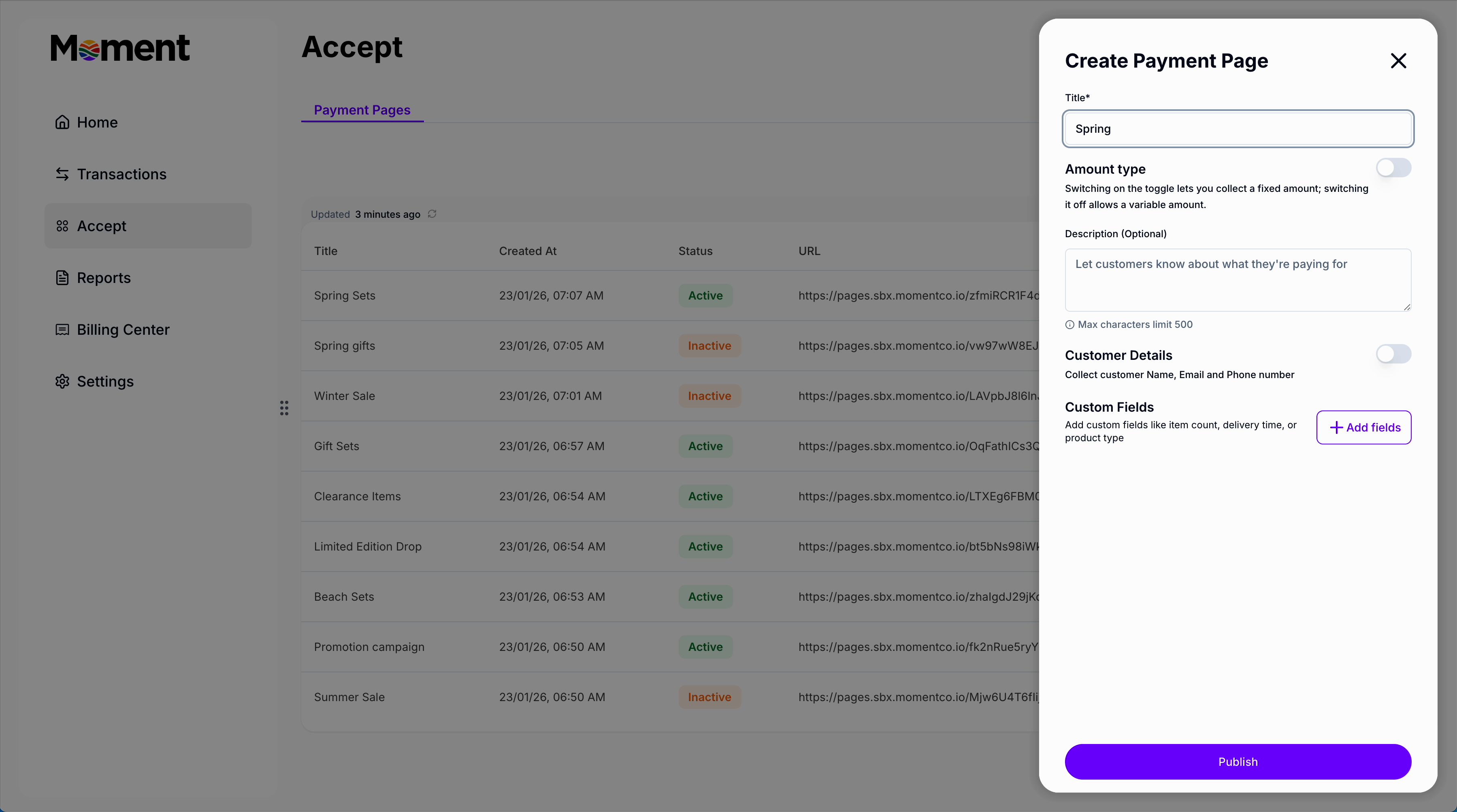
**Step 2:** Click **Create New Page** to set up a new payment page.

Add a title: this is what customers will see at checkout.
<img src="https://mintcdn.com/momentholdingslimited/ltrCqk19he2WwTGA/guides/resources/createpaymentpage.png?fit=max&auto=format&n=ltrCqk19he2WwTGA&q=85&s=c2f6b6c882785dd657ff8aebf9896855" alt="Create Payment Page" width="3598" height="2006" data-path="guides/resources/createpaymentpage.png" />

<Columns cols={2}>
  <div style={{ paddingTop: "4.5rem" }}>
    <br />

    **Step 3:**

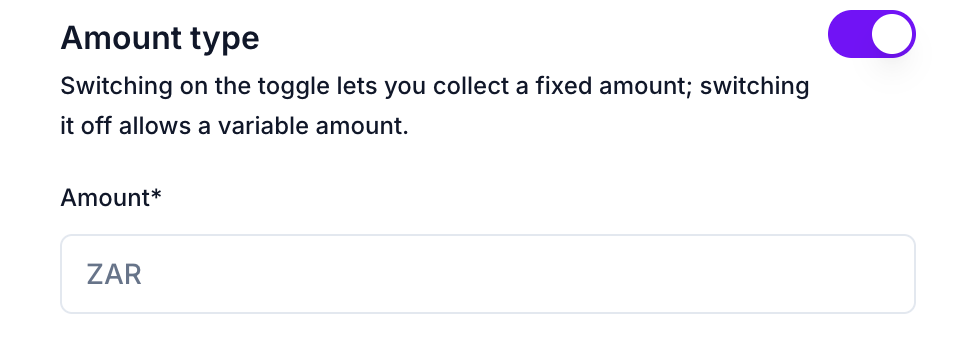
    Choose the amount type:

    * **Open amount** — let customers enter how much they want to pay
    * **Fixed amount** — set a specific price
  </div>

  <div style={{ paddingTop: "4.5rem" }}>
    <img src="https://mintcdn.com/momentholdingslimited/ltrCqk19he2WwTGA/guides/resources/amounttype-1.png?fit=max&auto=format&n=ltrCqk19he2WwTGA&q=85&s=6c96c0adf26e77c0f24e0bfcc62f046f" alt="Amount Type" title="Amount Type" style={{ width:"100%" }} width="978" height="166" data-path="guides/resources/amounttype-1.png" />

    <img src="https://mintcdn.com/momentholdingslimited/ltrCqk19he2WwTGA/guides/resources/amounttype.png?fit=max&auto=format&n=ltrCqk19he2WwTGA&q=85&s=198036981555d8ed8ae55e8ecb37a1ce" alt="Amount Type" title="Amount Type" style={{ width:"100%" }} width="974" height="344" data-path="guides/resources/amounttype.png" />
  </div>
</Columns>

<Columns cols={2}>
  <div style={{ paddingTop: "2.5rem" }}>
    <br />

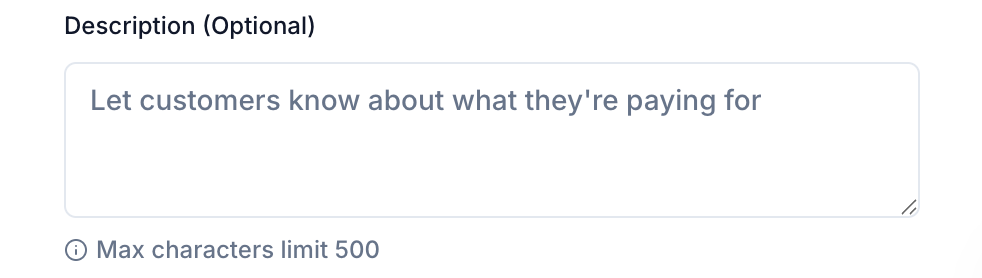
    **Step 4:** Add a clear description so customers understand what the payment is for.
  </div>

  <div>
    <img src="https://mintcdn.com/momentholdingslimited/ltrCqk19he2WwTGA/guides/resources/description.png?fit=max&auto=format&n=ltrCqk19he2WwTGA&q=85&s=d0376853eebd6cb72f409e3caf208617" alt="Description" title="Description" style={{ width:"100%" }} width="982" height="278" data-path="guides/resources/description.png" />
  </div>
</Columns>

<Columns cols={2}>
  <div style={{ paddingTop: "6.5rem" }}>
    <br />

    **Step 5:** Choose which customer details to collect.
  </div>

  <div style={{ paddingTop: "4.5rem" }}>
    <img src="https://mintcdn.com/momentholdingslimited/ltrCqk19he2WwTGA/guides/resources/customerdetails.png?fit=max&auto=format&n=ltrCqk19he2WwTGA&q=85&s=b2715cedb2ac1da789233aa895840b65" alt="Customer Details" title="Customer Details" style={{ width:"100%" }} width="976" height="130" data-path="guides/resources/customerdetails.png" />
  </div>
</Columns>

<Columns cols={2}>
  <div style={{ paddingTop: "2.5rem" }}>
    <br />

    Use toggles to collect basic details: name, email, and phone number

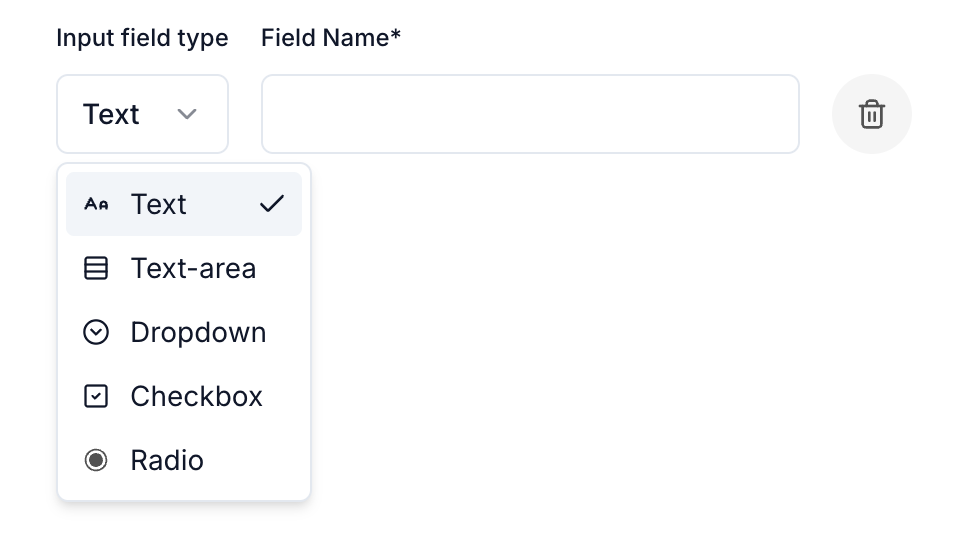
    Add custom fields such as text input, text area, dropdown, checkboxes, or radio buttons
  </div>

  <div>
    <img src="https://mintcdn.com/momentholdingslimited/ltrCqk19he2WwTGA/guides/resources/customfields.png?fit=max&auto=format&n=ltrCqk19he2WwTGA&q=85&s=587ab75878e8cfd869d47c3d1f561c16" alt="Custom Fields" title="Custom Fields" style={{ width:"100%" }} width="964" height="542" data-path="guides/resources/customfields.png" />
  </div>
</Columns>

<Columns cols={2}>
  <div style={{ paddingTop: "2.5rem" }}>
    <br />

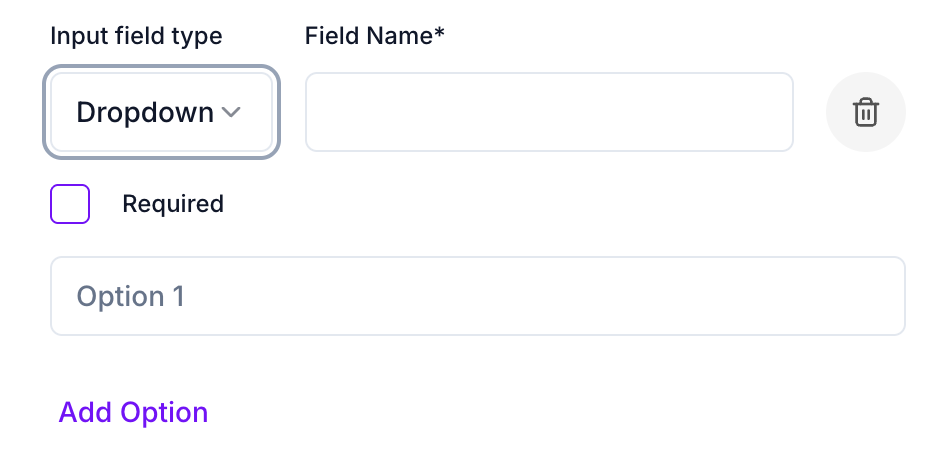
    For dropdowns and radio buttons, add the options customers can choose from.

    All submitted information will appear in the transaction details.
  </div>

  <div>
    <img src="https://mintcdn.com/momentholdingslimited/ltrCqk19he2WwTGA/guides/resources/dropdown.png?fit=max&auto=format&n=ltrCqk19he2WwTGA&q=85&s=e842281070e40801c563448019d00f66" alt="Dropdown" title="Dropdown" style={{ width:"100%" }} width="952" height="460" data-path="guides/resources/dropdown.png" />
  </div>
</Columns>

<Columns cols={2}>
  <div style={{ paddingTop: "4.5rem" }}>
    <br />

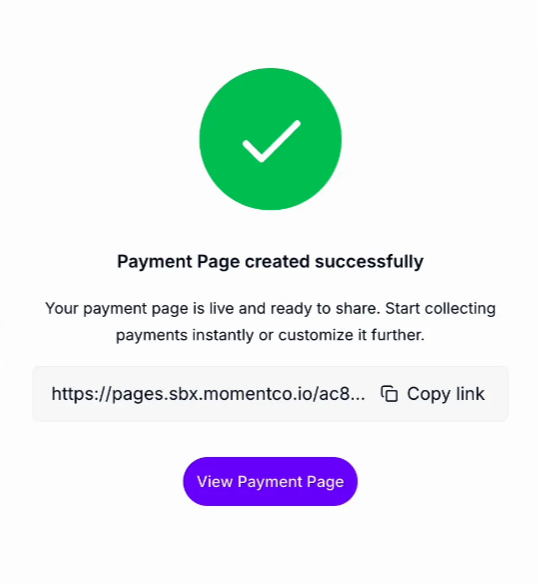
    **Step 6:** Click **Publish** to make your payment page live.

    <br />

    **Step 7:** Preview the page to see exactly how it looks for customers, including all custom fields.

    <br />

    **Step 8:** Copy the payment link and share it:

    * Send directly to customers
    * Add to your website
    * Post on social media
  </div>

  <div>
    <img src="https://mintcdn.com/momentholdingslimited/ltrCqk19he2WwTGA/guides/resources/success.png?fit=max&auto=format&n=ltrCqk19he2WwTGA&q=85&s=d426f148c5306ebd1b941d53a6d178a2" alt="Success" title="Success" style={{ width:"100%" }} width="538" height="584" data-path="guides/resources/success.png" />
  </div>
</Columns>

<br />

**Step 9:** Track all payments made through your page.

View transaction details, edit the page, or disable it at any time.

<img src="https://mintcdn.com/momentholdingslimited/ltrCqk19he2WwTGA/guides/resources/trx.png?fit=max&auto=format&n=ltrCqk19he2WwTGA&q=85&s=b70bfba52b6942a78ed693660caac1f4" alt="Trx" width="2902" height="558" data-path="guides/resources/trx.png" />

Payment Pages make it simple to create, customize, and share payment links — so you can collect payments smoothly and focus on growing your business.