> ## Documentation Index
> Fetch the complete documentation index at: https://docs.momentco.io/llms.txt
> Use this file to discover all available pages before exploring further.
# Paying with PayShap
> How customers complete a PayShap payment in Checkout, and how to opt in to PayShap at each major bank.
PayShap is an **instructions-only** payment method (see [Instructions-Only Payment Methods](/guides/payment-flows/checkout#instructions-only-payment-methods)). Instead of completing the payment inside Checkout, the customer is shown a reference and an amount, then finishes the payment in their own banking app.
This guide walks customers through completing a PayShap payment in Checkout, and links out to each bank's own instructions for opting in to PayShap and creating a ShapID.
## Step 1: Select PayShap in Checkout
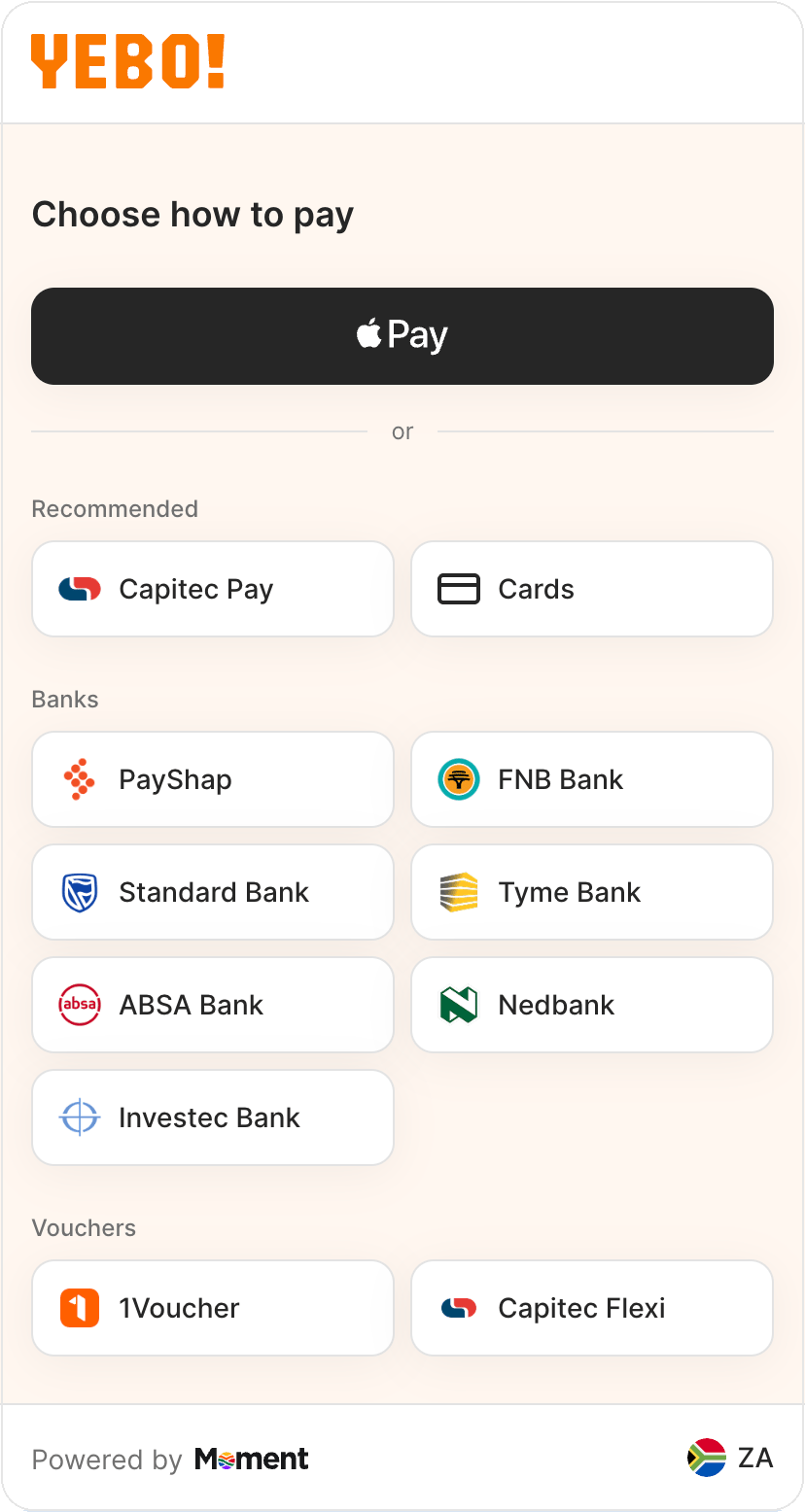
On the **Choose how to pay** screen, PayShap is listed under **Banks**.
* PayShap only appears if the merchant has enabled it and the customer is in a supported region.
## Step 2: Follow the PayShap instructions
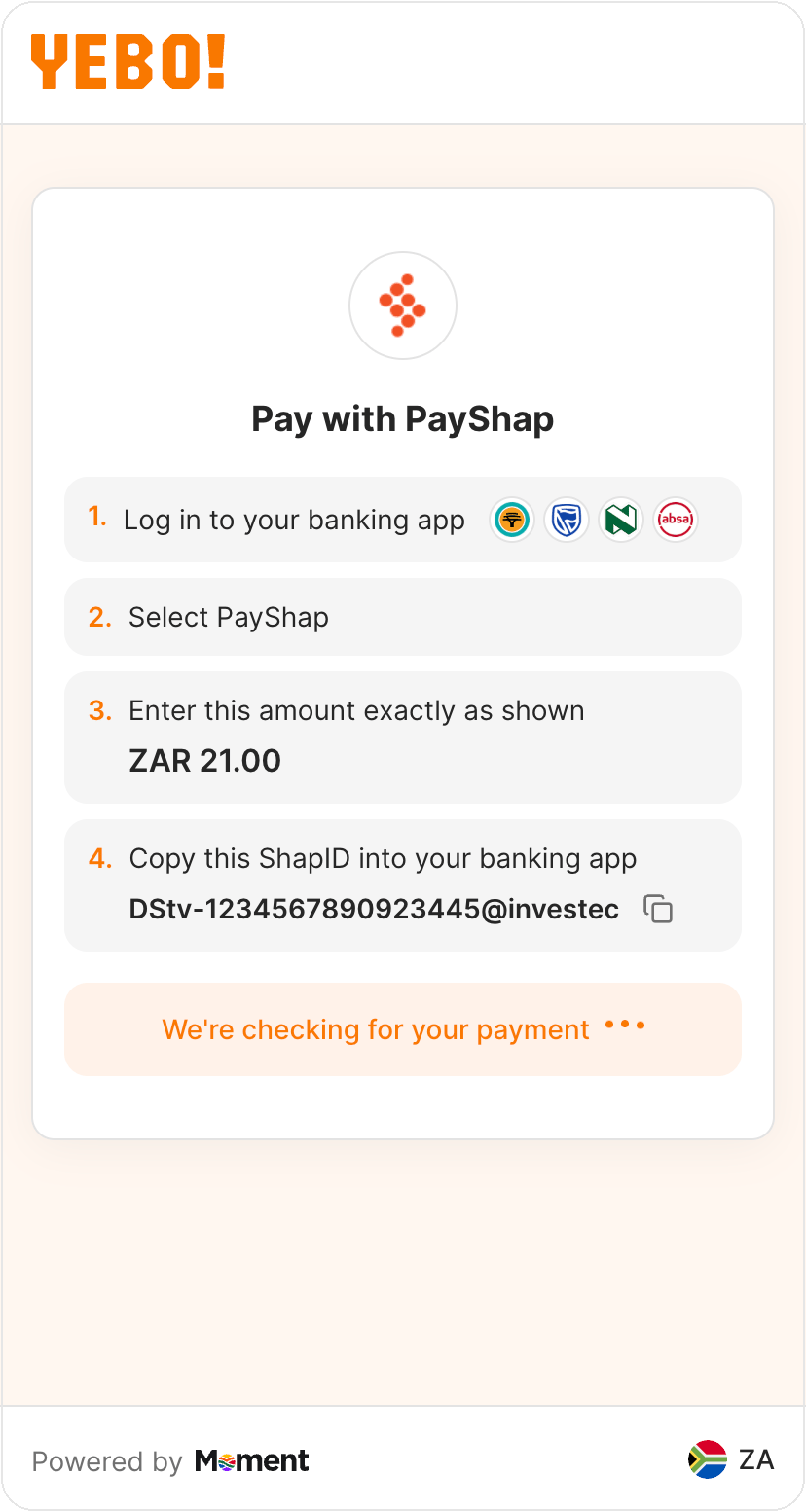
Checkout displays four instructions:
1. **Log in to your banking app**: the customer opens their own bank's app (not Moment's).
2. **Select PayShap**: inside their banking app, not in Checkout.
3. **Enter this amount exactly as shown**: the amount must match exactly, for example `ZAR 181.68`.
4. **Copy this ShapID into your banking app**: this is Moment's ShapID for the transaction (for example `momt-30434631710782@investec`), not the customer's own ShapID. The customer can tap the copy icon to copy it.
The amount and ShapID shown are unique to this transaction. The customer must enter them exactly as displayed for the payment to be successful.
While the customer completes the payment in their banking app, Checkout shows **Waiting for your payment** and polls for status. Once the bank confirms the payment, Moment's Checkout updates automatically.
## Step 3: Complete the payment in a banking app
Once customers have the amount and ShapID from Checkout, they need to enter these into their own bank's app. The exact menu names differ by bank. Use the tabs below for bank-specific navigation.
1. Open the **FNB App** and log in.
2. Tap **Pay**, then select **PayShap**.
3. Choose to pay using a **ShapID** and enter the ShapID shown in Checkout.
4. Enter the exact amount shown in Checkout.
5. Review the recipient details shown by the app, then confirm and authorize the payment.
1. Open the **Standard Bank app** and log in.
2. From the home screen, tap **Transact**, then **Pay**.
3. Select the **PayShap** payment option.
4. Enter the ShapID shown in Checkout and tap **Verify**.
5. Once the details are verified, tap **Review**, check that everything matches Checkout, then tap **Confirm**.
1. Open the **Absa Banking App** and log in.
2. Tap **Pay**, then select **PayShap**.
3. Choose **ShapID**, enter the ShapID shown in Checkout, and search for the recipient bank if prompted.
4. Enter the exact amount and the reference shown in Checkout.
5. Confirm the recipient details, then tap **Next**/**Confirm** to send the payment.
1. Open the **Nedbank Money app** and log in.
2. Select the **PayShap** widget, then choose **Pay to ShapID**.
3. Enter the ShapID shown in Checkout.
4. Enter the exact amount shown in Checkout.
5. Review the payment details and tap **Pay**, then confirm via the Approve-It prompt.
## Opting in to PayShap
To pay with PayShap, a customer's bank account needs to be opted in to PayShap already. This is a one-time setup step done directly with their bank, outside of Checkout. If a customer can't find PayShap in their banking app, they likely need to register first.
Registering a ShapID is only required to **receive** PayShap payments. Customers can typically still **make** a PayShap payment (paying Moment's ShapID, as in this flow) once PayShap is enabled on their profile, even without registering their own ShapID, but each bank's own app will prompt for anything further that's needed.
FNB customers can register a ShapID from the **FNB App**: tap **Pay** > **PayShap** > **ShapID**, or from Online Banking under **Payments** > **Add** > **PayShap**.
See FNB's own instructions: [FNB Payments: PayShap](https://www.fnb.co.za/ways-to-bank/digital/fnb-pay.html)
Standard Bank customers can register a ShapID from the app: **Accounts** > **PayShap** > **Manage ShapIDs** > **Add ShapID**.
See Standard Bank's own instructions: [How to receive PayShap payments](https://www.standardbank.co.za/southafrica/personal/products-and-services/ways-to-bank/help-centre/register-for-payshap-payments)
Absa customers can register a ShapID from the Absa Banking App: tap their profile, then **Register your ShapID**.
See Absa's own instructions: [Absa: PayShap](https://www.absa.co.za/self-service/digital-banking-services/payshap/)
Nedbank customers can register a ShapID from the Money app: select the **PayShap** widget, then **Manage ShapID** > **Register a ShapID**, and link an account.
See Nedbank's own instructions: [Instantly send and receive money with PayShap](https://personal.nedbank.co.za/bank/digital-banking/needs/payments/payshap.html)
Bank app navigation changes over time. If a customer can't find one of the menu items above, direct them to their bank's own PayShap page linked in each tab, or their bank's customer support.